Simple Restore Worksheet
Filter section
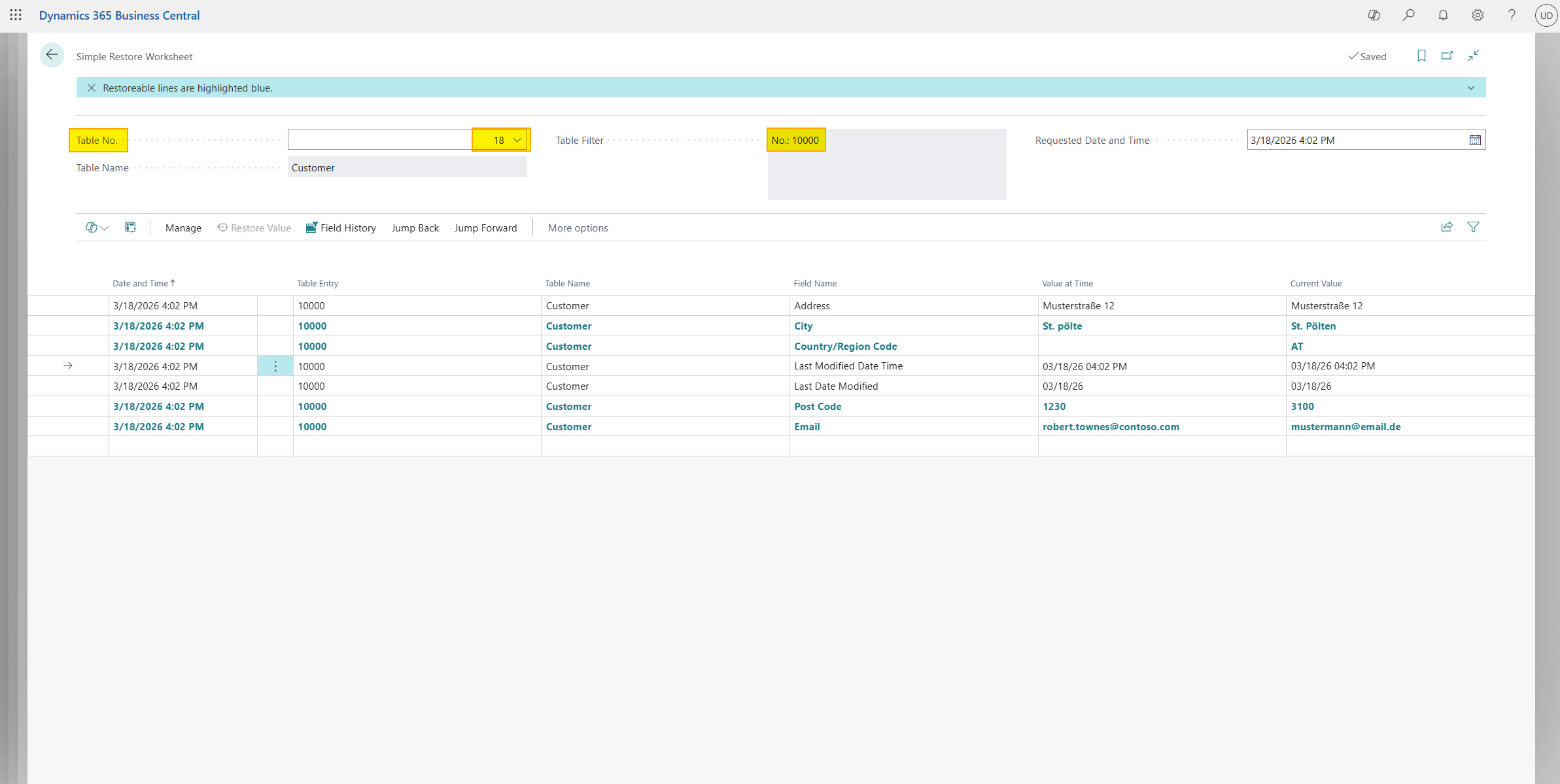
At the top of the worksheet, you will find the filter fields:
| Field | Description |
|---|---|
| Table No. | Select the table whose history data should be shown. Only logged tables can be selected. |
| Table Name | Filled automatically from Table No. (read-only). |
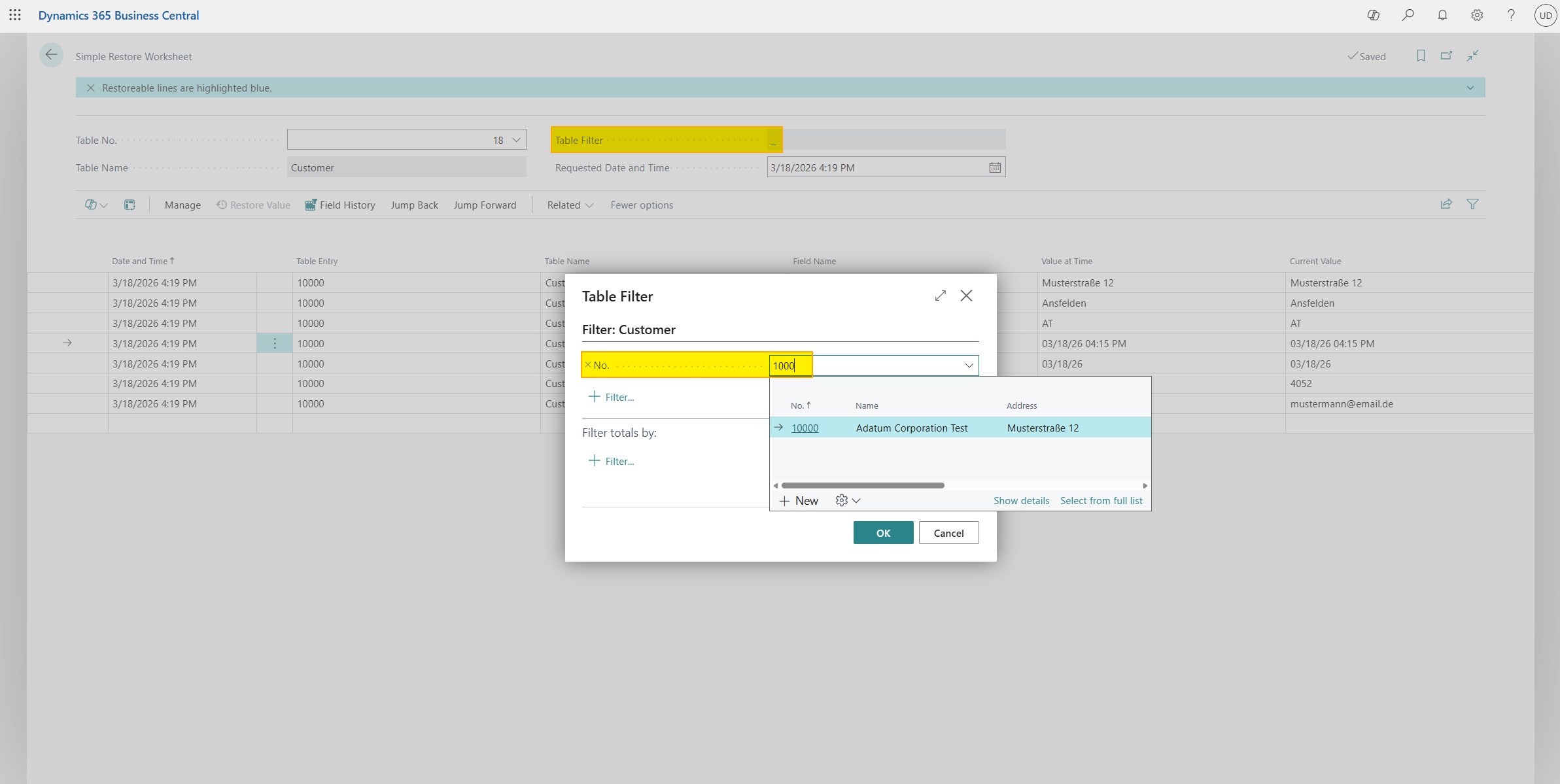
| Table Filter | Filter specific records within the table. Click the field to open a filter assistant. |
| Requested Date and Time | The point in time for which historical values should be shown. By default, this is the current point in time. |
History table
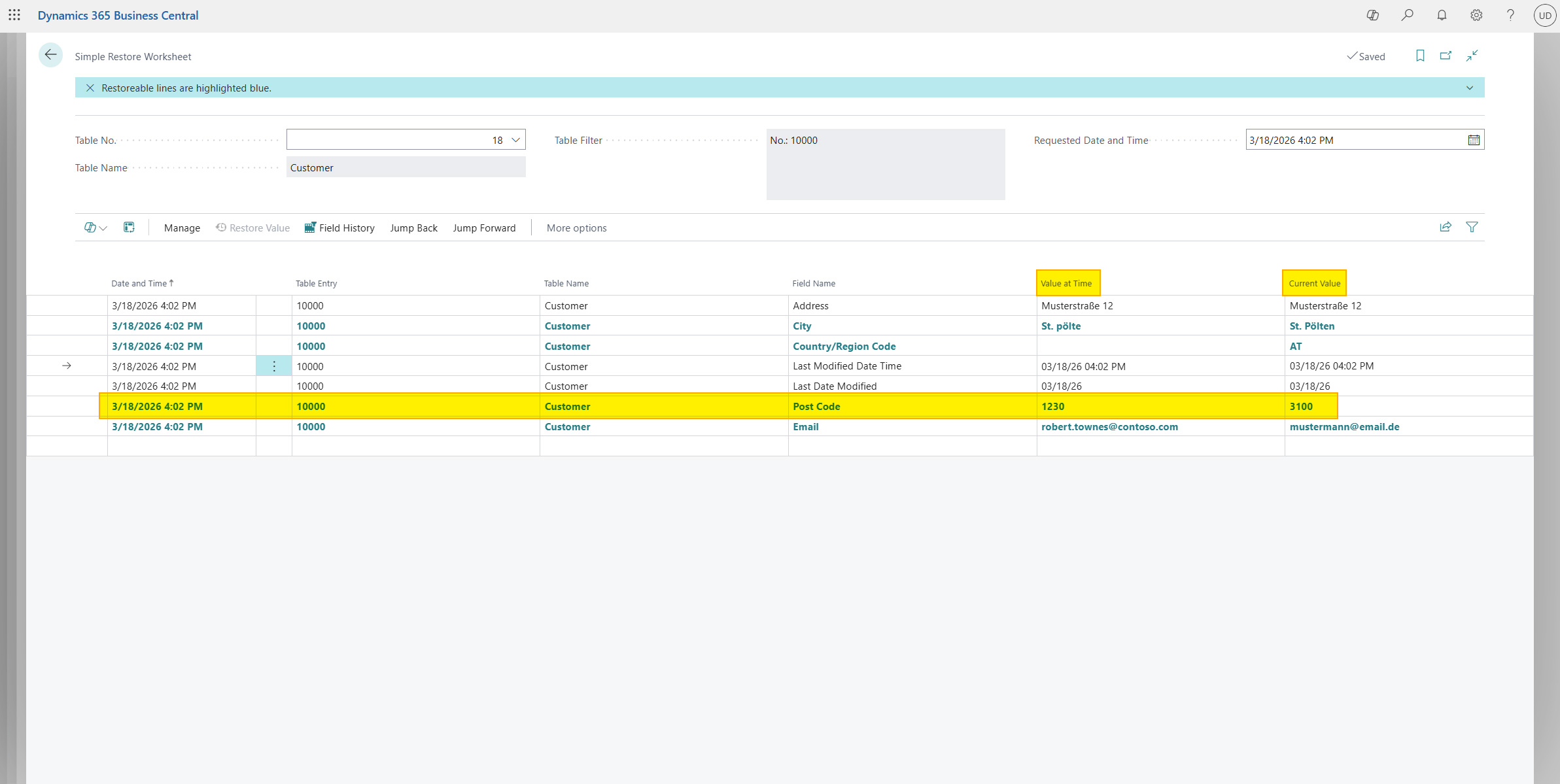
For the selected point in time, the table shows all logged fields of the filtered records:
| Column | Description |
|---|---|
| Date and Time | The requested point in time |
| Table Entry | Identification of the record (for example, Customer No.) |
| Table Name | Name of the table |
| Field Name | Name of the field |
| Value at Time | Value of the field at the requested point in time |
| Current Value | Current value of the field in Business Central |
Lines that are highlighted in blue indicate fields where the historical value differs from the current value - these can be restored.
Time navigation
You can adjust the shown point in time in different ways:
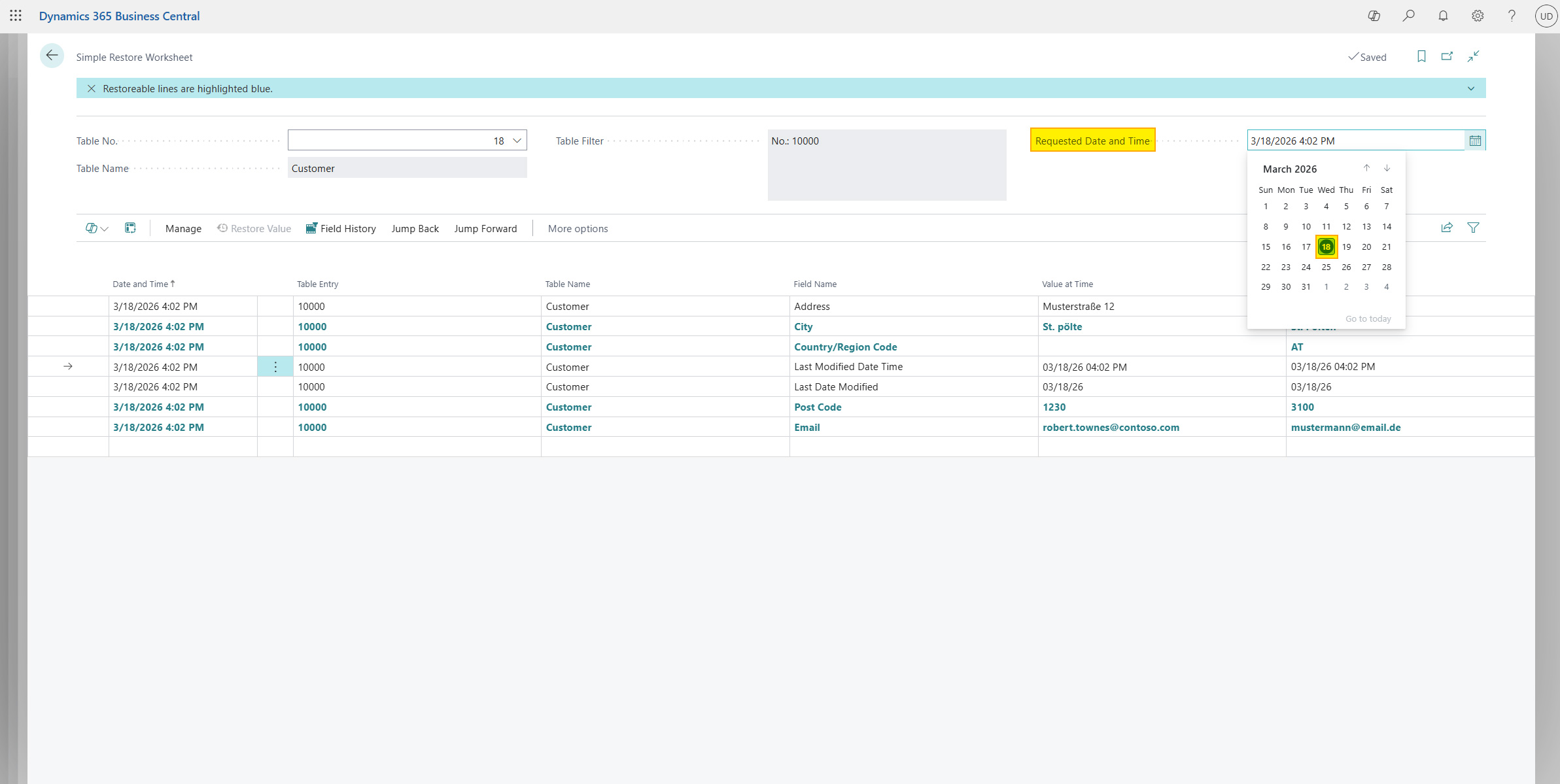
Enter timestamp directly
Change the Requested Date and Time field directly to any point in time.
Navigation actions
In the action area, two navigation groups are available:
Jump backward:
| Action | Description |
|---|---|
| Previous Change | Jumps to the time of the last change for the selected field |
| 1 Day Back | Sets the point in time back by 24 hours |
| 1 Week Back | Sets the point in time back by 7 days |
| 1 Month Back | Sets the point in time back by 1 month |
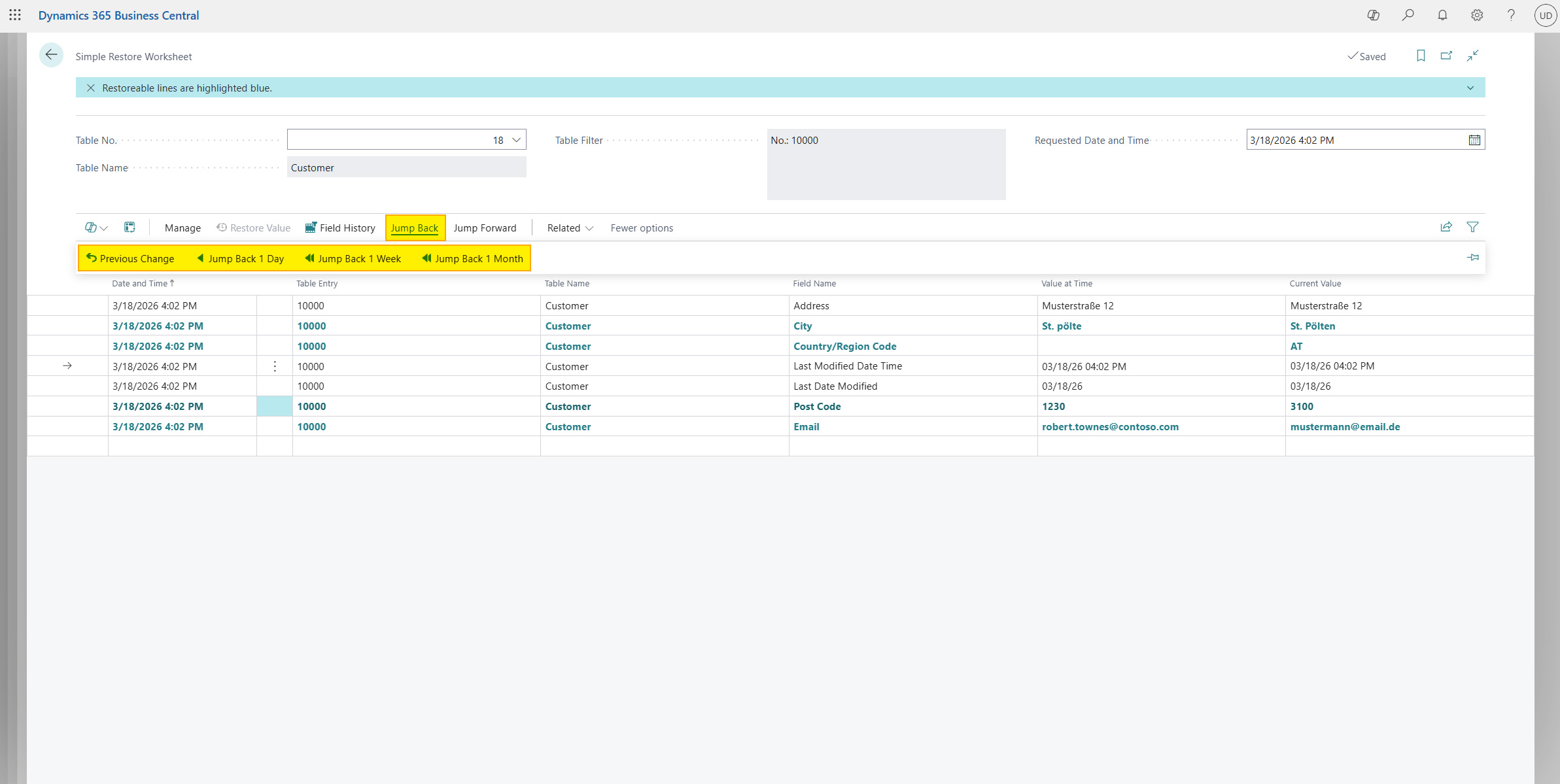
Jump forward:
| Action | Description |
|---|---|
| Next Change | Jumps to the time of the next change for the selected field |
| 1 Day Forward | Sets the point in time forward by 24 hours |
| 1 Week Forward | Sets the point in time forward by 7 days |
| 1 Month Forward | Sets the point in time forward by 1 month |
| To Present | Resets the point in time to the current point in time |
Jump-forward actions are only available when the selected point in time is in the past.
Restore field value
Restore a single field
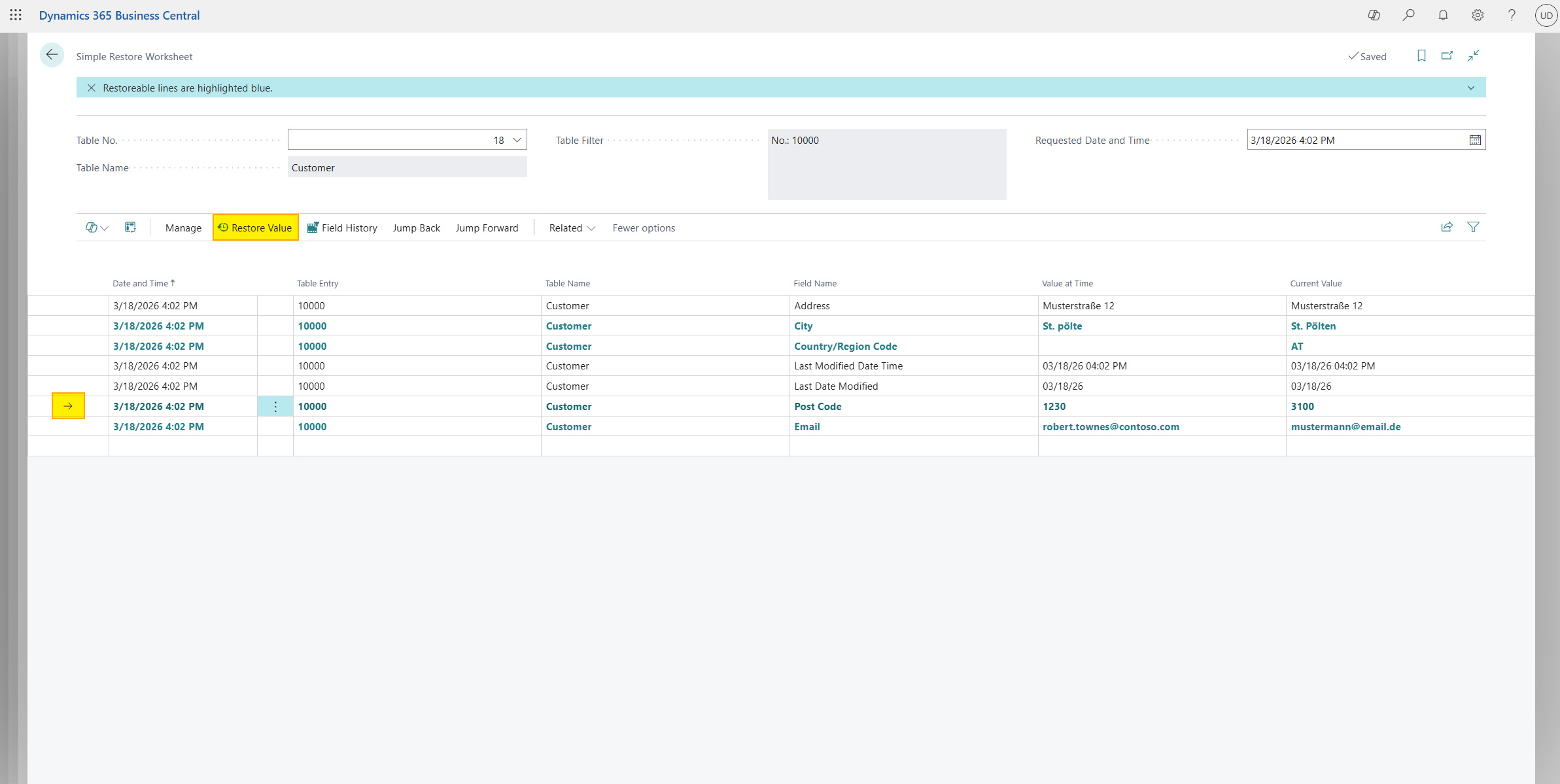
- Select the required line in the history table (must be highlighted in blue)
- Click Restore Value
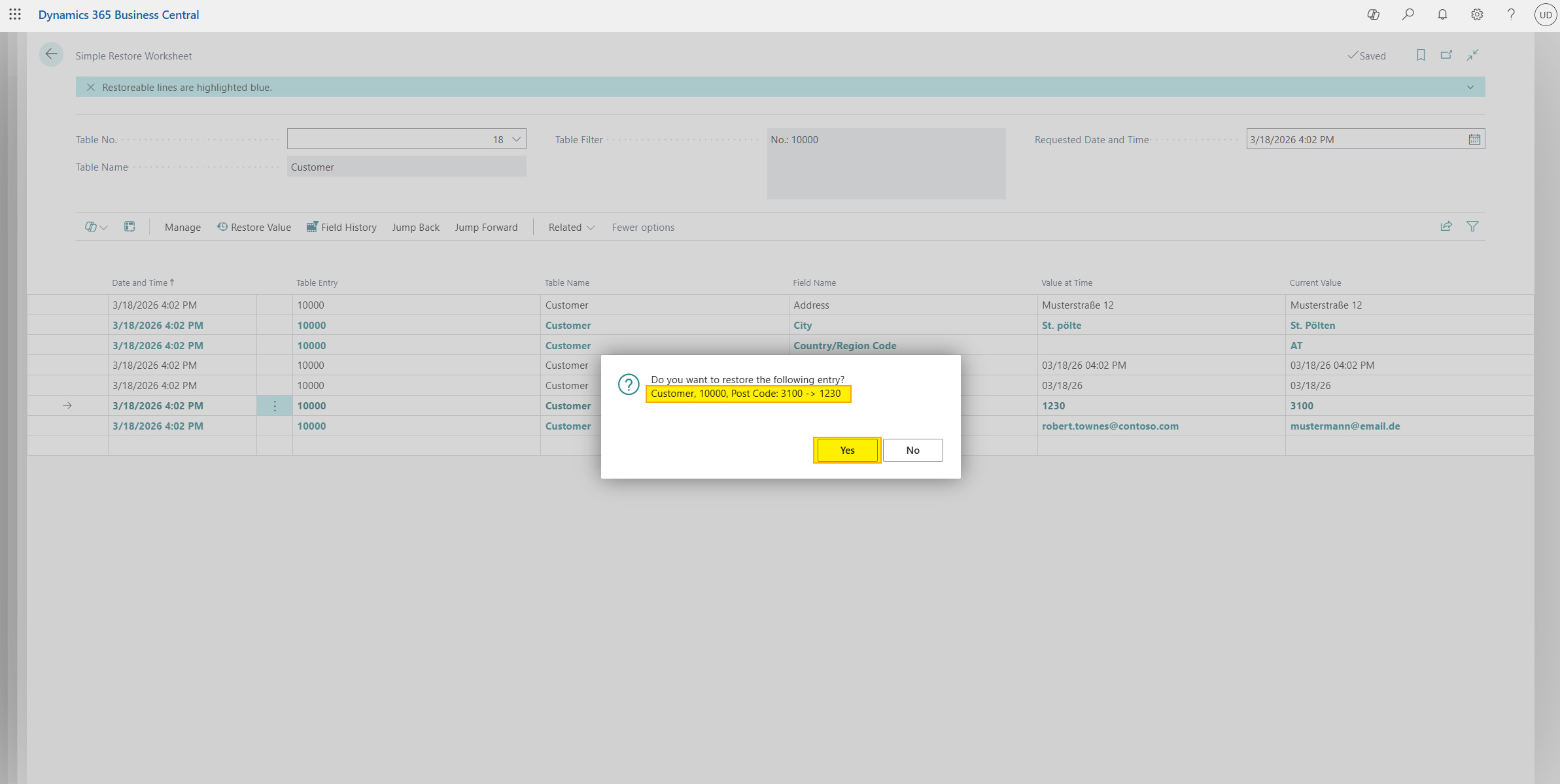
- Confirm the dialog - it shows exactly which value will be replaced by which value:
Do you want to restore the following entry? Table Name, Record, Field Name: Current Value -> Historical Value
- After confirmation, the value is updated in Business Central
Restore multiple lines at once (Expert Mode)
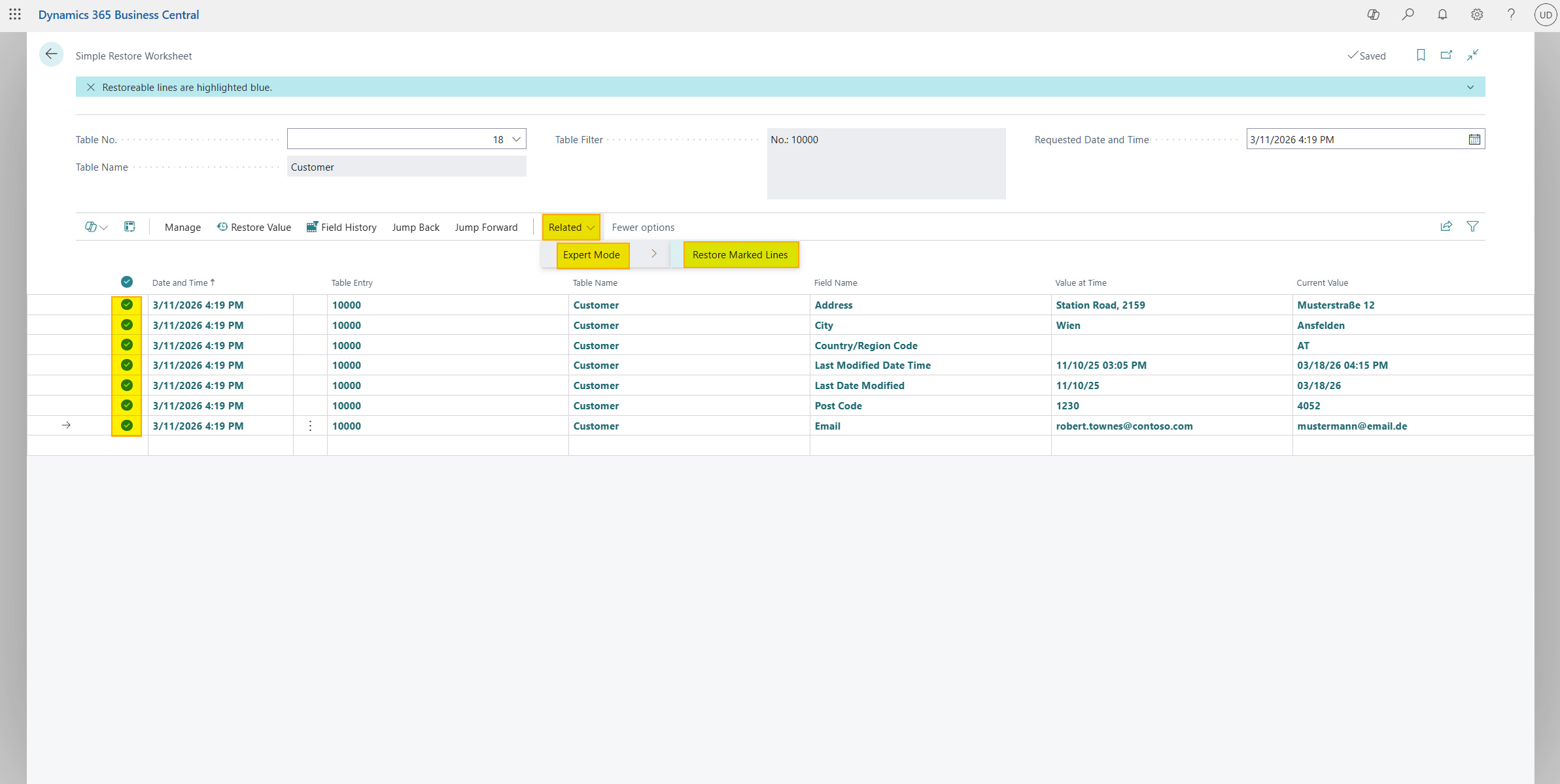
- Select multiple lines in the history table (only blue highlighted lines are considered)
- Go to Navigation -> Expert Mode -> Restore Marked Lines
- Confirm the dialog
- All selected restorable lines are updated
The restore action cannot be undone automatically. Check values carefully before confirming.
Help
- App page on our website: Here you can find prices, more features, and contact information
- Microsoft AppSource: open here
- Contact form: Open contact form