Notification List
The "Advanced Notifications" page is your central hub for managing all notifications.
Search for "Advanced Notifications" to open the list.
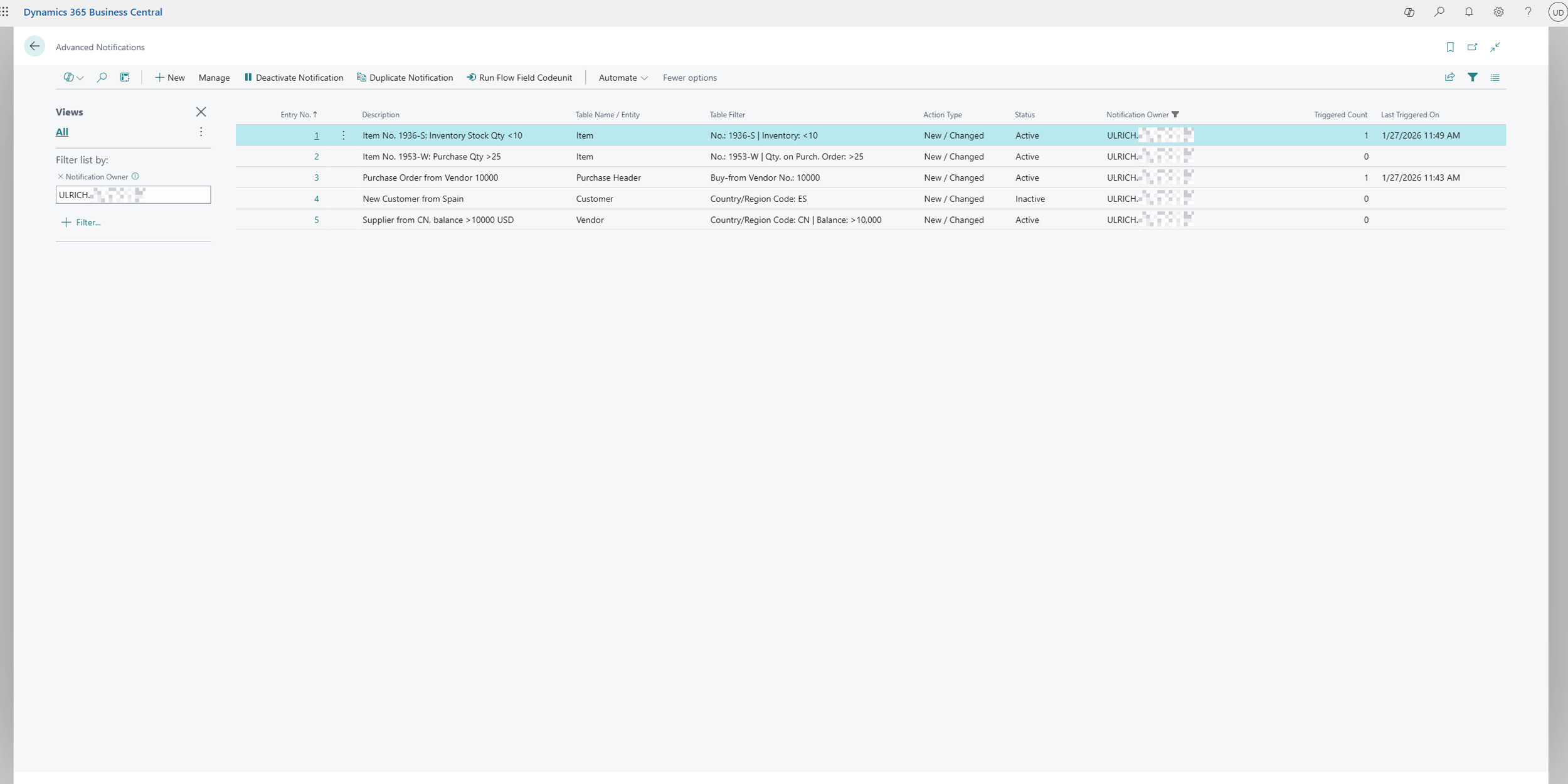
Automatic Filter "Advanced Notifications"
When you open the list, a filter is set by default on the "Notification Author". This means that initially, each BC user only sees the rules where they are listed as the author.
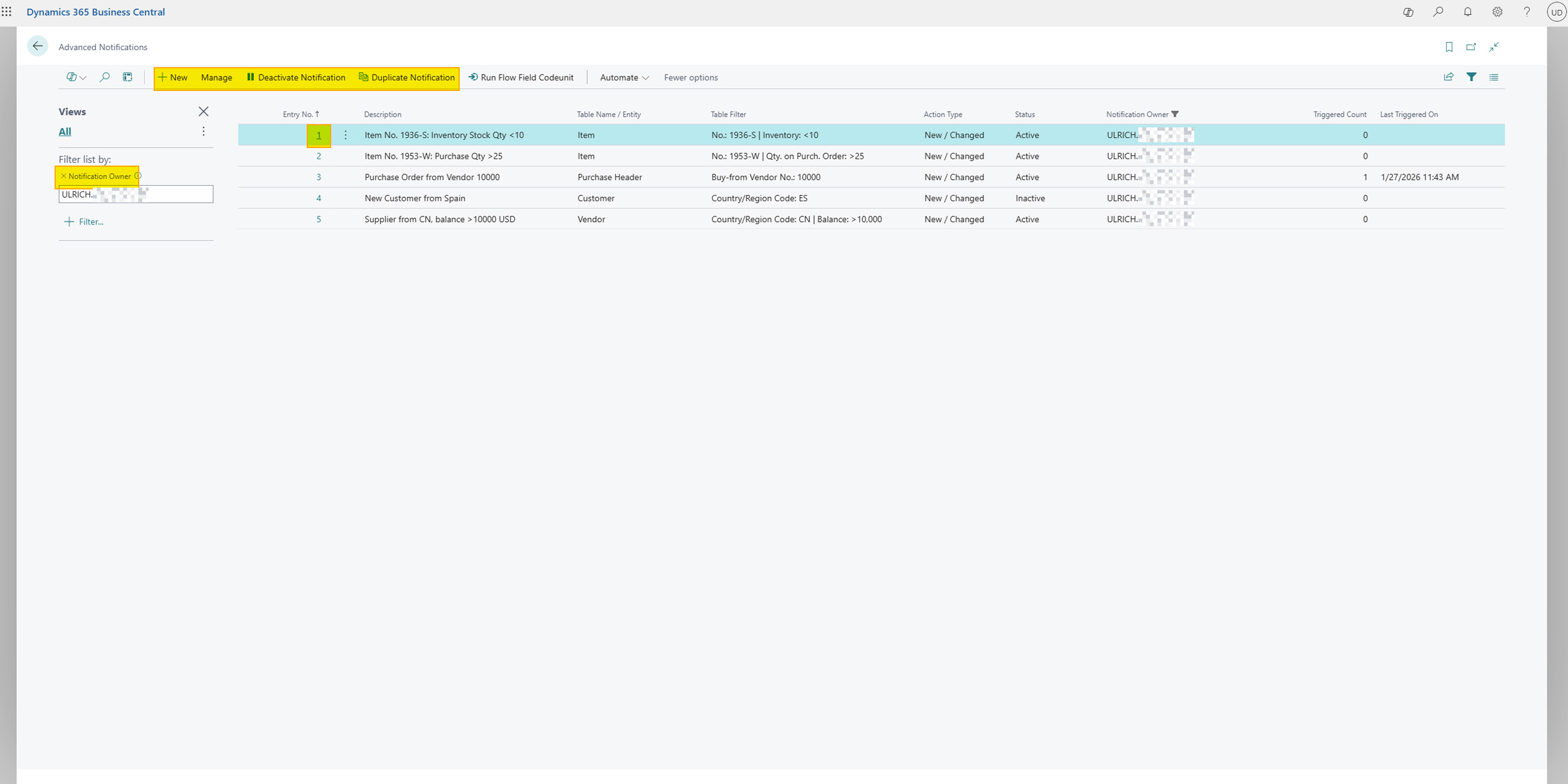
Adjust Filters
You can change or remove this filter at any time via the filter panel on the side of the screen to view all rules you have permission to see. To see system filters, you may need to click "Show system filters".
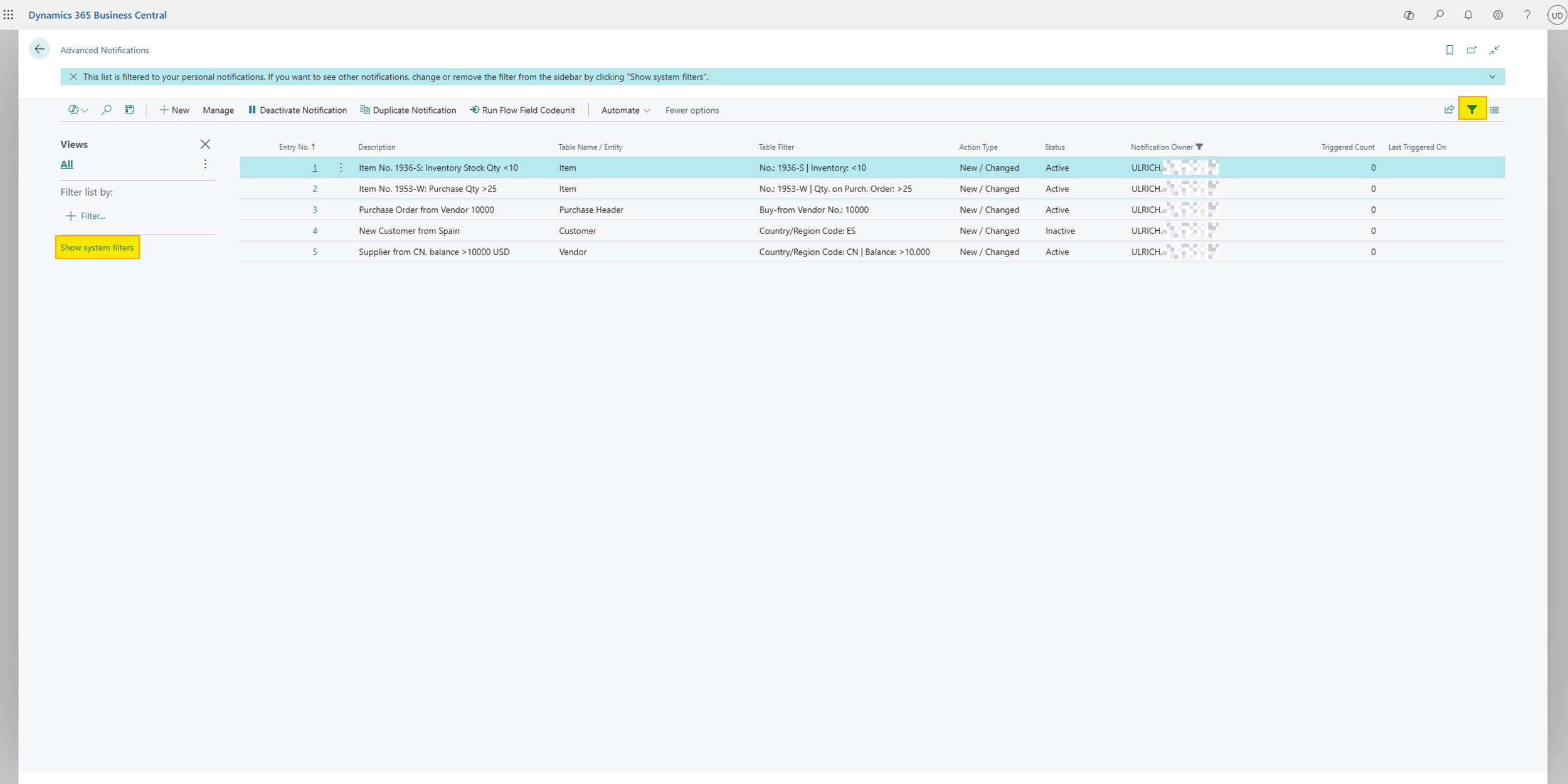
Actions in the List
Directly from the list view, you can quickly perform the most important actions:
Create New Rule
Click "New" to create a new, empty notification rule on the card view.
Duplicate Rule
If you want to use an existing rule as a template for a new one, you can easily duplicate it.
- Select the rule you want to copy.
- Choose the "Duplicate Notification" action.
- A copy of the rule will be created and opened directly on the card view. The Status is reset to "Draft" and the Notification Owner to you as the current user, so the new rule immediately appears in your filtered default view.
If you want to activate a duplicated notification without changes, you will be notified that an identical notification already exists.
Activate/Deactivate Rule
You can change the status of one or more rules directly from the list.
- Activate: Select one or more rules with status "Draft", "Inactive" or "Completed" and click "Activate Notification". Only active rules are processed by the system.
- Deactivate: Select one or more active rules and click "Deactivate Notification". Deactivated rules are ignored until they are reactivated.
Help
- App page on our website: Here you can find prices, more features, and contact information
- Microsoft AppSource: open here
- Contact form: Open contact form