Create a Flow
The Advanced Notification App generates so-called "External Business Events" in Business Central for each triggered notification. These events can be further processed in Power Automate, for example.
To help you get started, we provide a Power Automate flow template.
Download link: Download Power Automate Flow Template
Use the official Microsoft documentation to import the template.
After import, the flow will be available in your "My Flows" list.
The External Business Event
The event generated by Business Central contains the following structured data:
{
  "NotificationRuleId": 123,
  "RecipientMail": "test@example.com",
  "RecipientName": "John Doe",
  "RecipientLanguage": "ENU"
}
Based on this data, the underlying notification can be queried and the recipient can be identified.
The Template
The Power Automate Flow starts when an External Business Event is triggered. The first step is to parse the structured data in Power Automate. The "Parse JSON" node is used for this. After this node, you have access to the structured data in Power Automate's dynamic values.
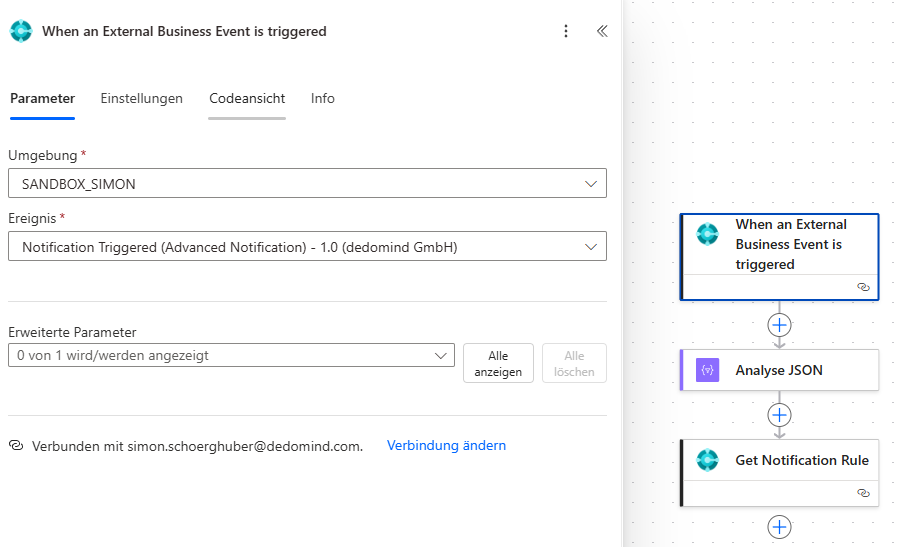
In the next step, the underlying notification can be retrieved from Business Central. The "Get Notification Rule" node handles this.
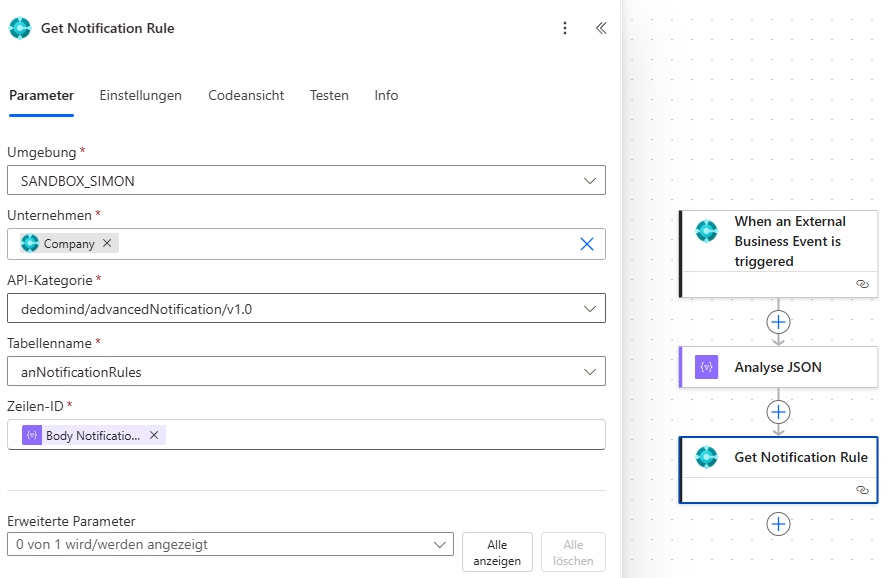
The next node now has access to the recipient and the notification data. With this, the flow can be completed. A possible node could be to send a Teams message to the recipient.
Help
- App page on our website: Here you can find prices, more features, and contact information
- Microsoft AppSource: open here
- Contact form: Open contact form