The Notification Card
The notification card is where you define all details of a notification. It is divided into several sections.
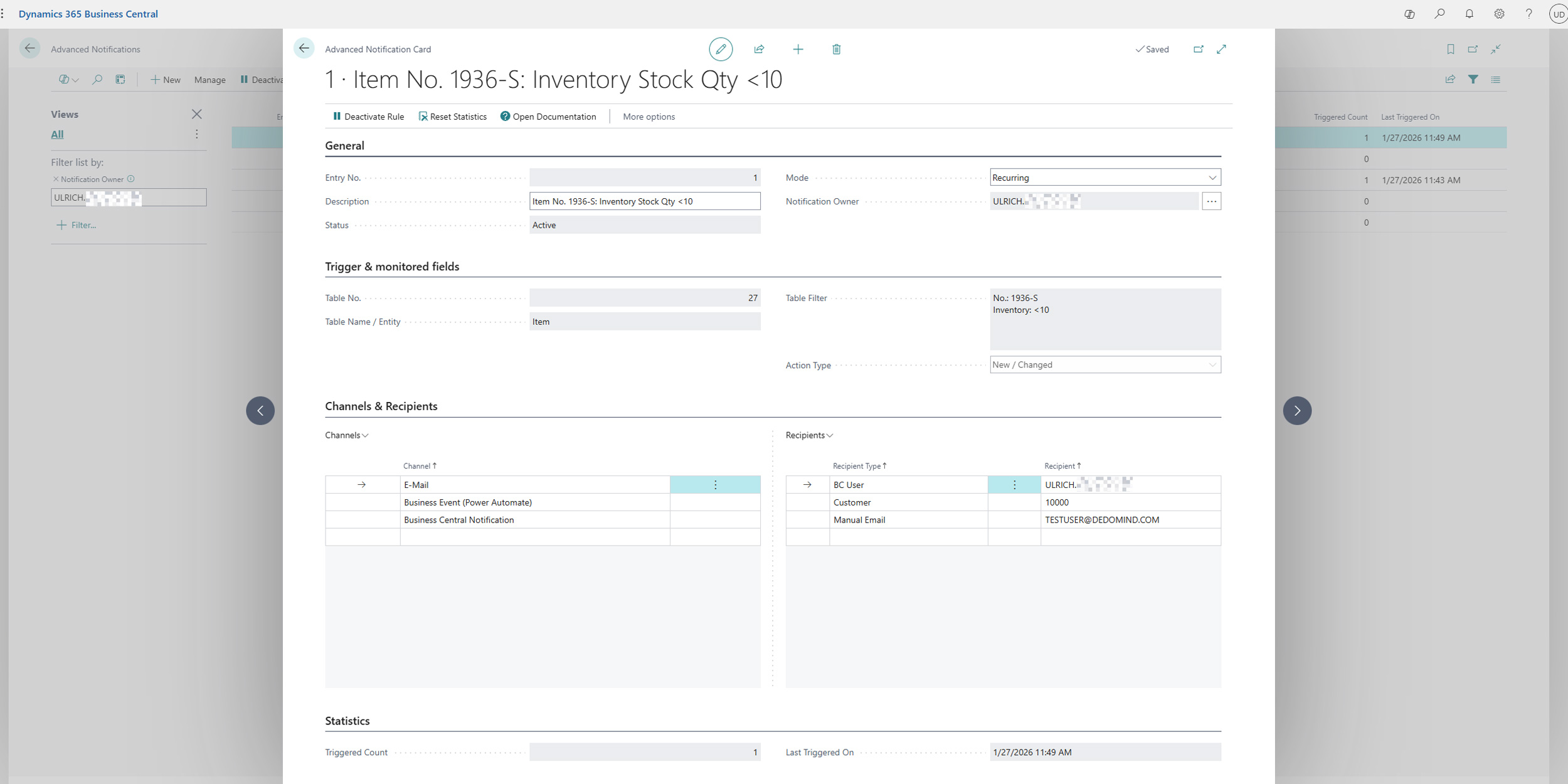
General
In this section, you define the basic properties of the notification.
- Description: A meaningful text describing the purpose of the notification.
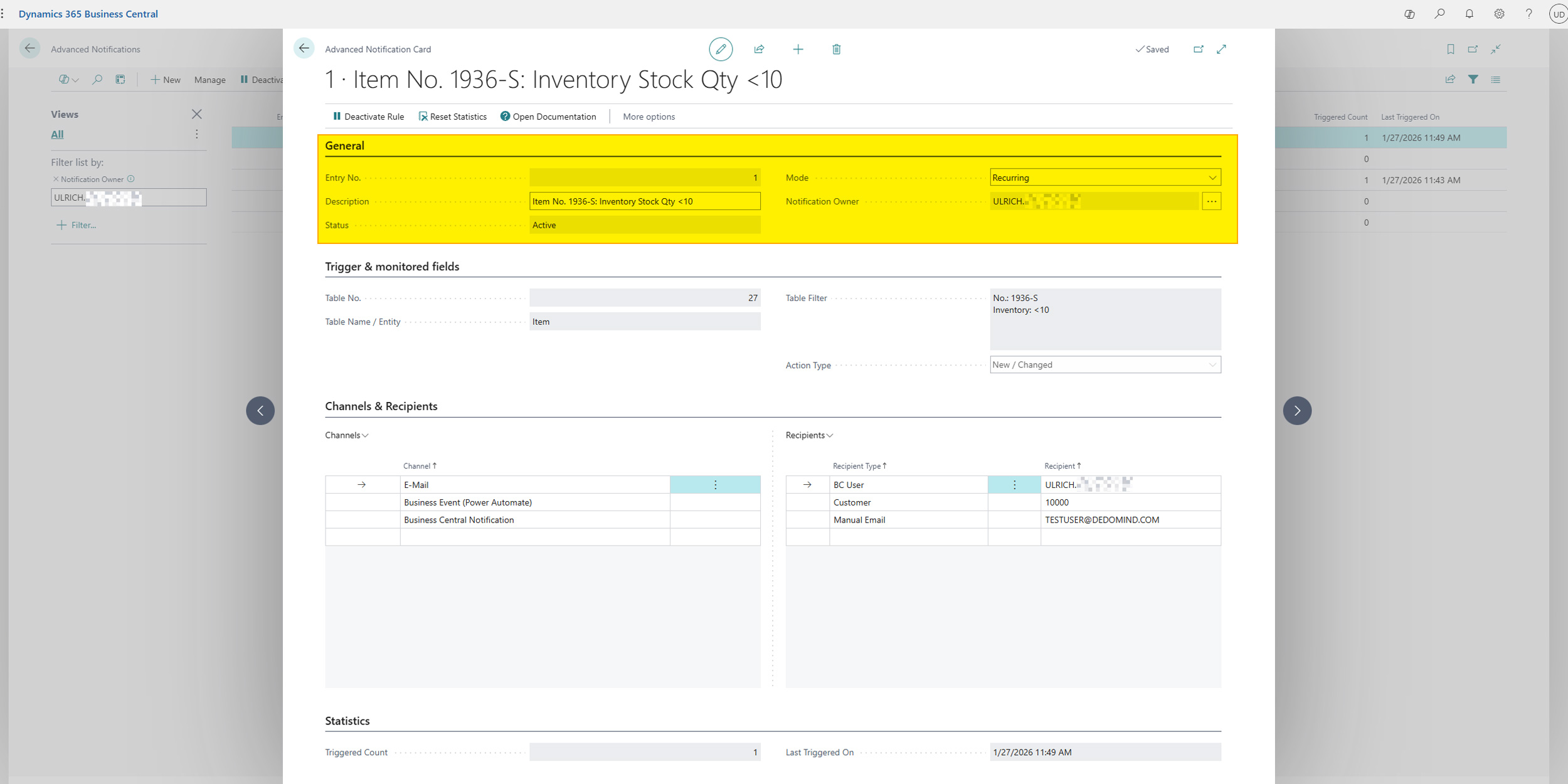
- Status: Shows the current status. This cannot be edited directly but is controlled via the
ActivateandDeactivateactions.- Draft: The notification is new or a copy and not yet active.
- Active: The rule is activated and monitored by the system.
- Inactive: The notification has been manually deactivated and is ignored.
- Completed: A one-time notification that has already been triggered.
- Mode: Determines how often the notification should trigger.
- Recurring: The notification is triggered each time the conditions are met.
- One-time: The notification is only triggered the first time the conditions are met and then automatically set to "Completed" status.
- Notification Owner: The user responsible for this notification. The list view is filtered by this field by default.
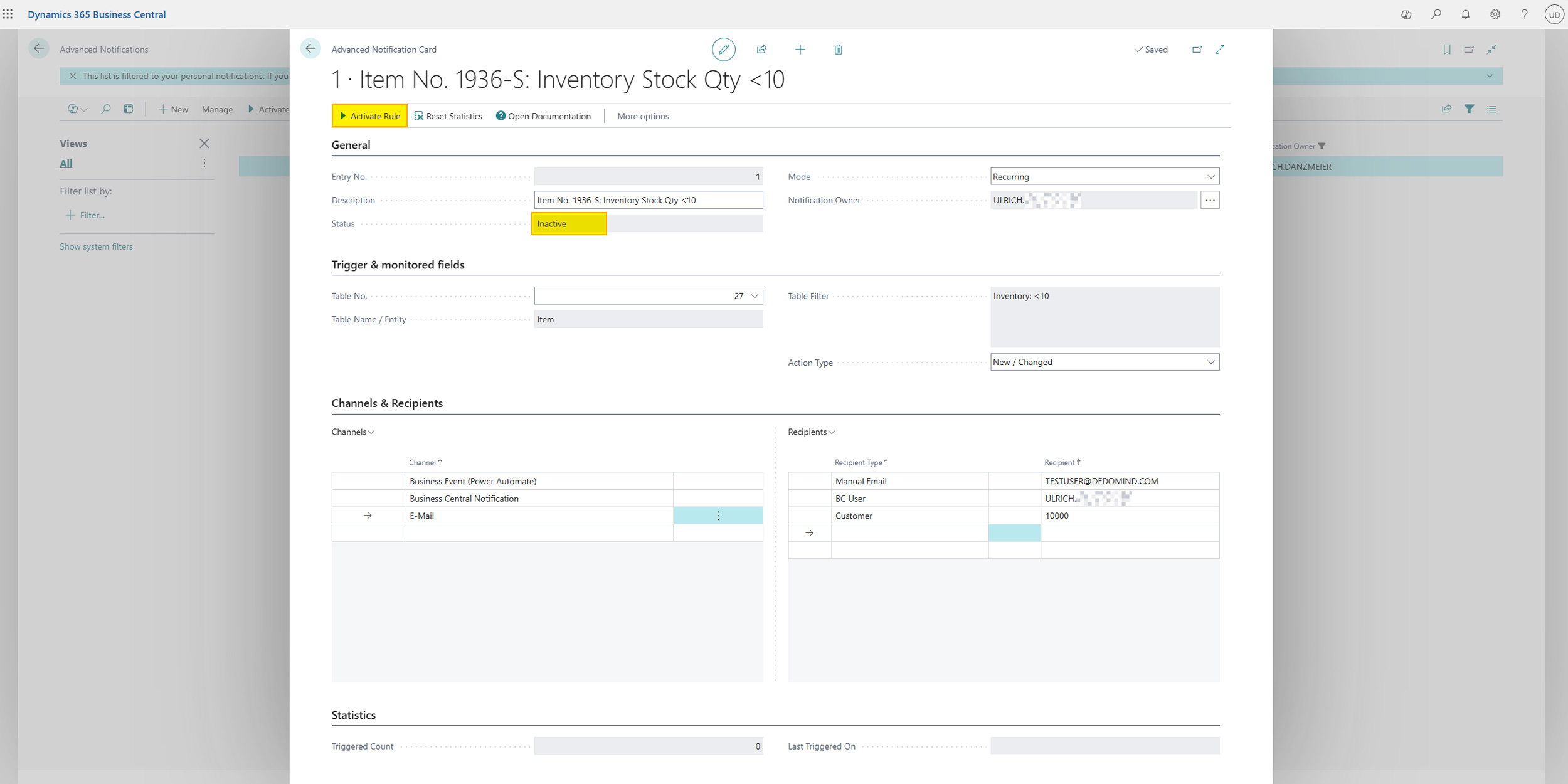
Trigger & Monitored Fields
Here you define when a notification should be triggered.
- Table No. / Table Name: Select the table to be monitored (e.g., "Customer", "Sales Order").
- Table Filter: Click on this field to open a filter window. Here you can set very specific conditions for triggering.
- Example: You only want to be notified about customers from a specific country. Add a filter for the "Country Code" field here.
- Action Type: Select the database operation to respond to:
Insert/Modify: Triggers when a new record is created or modified.
info
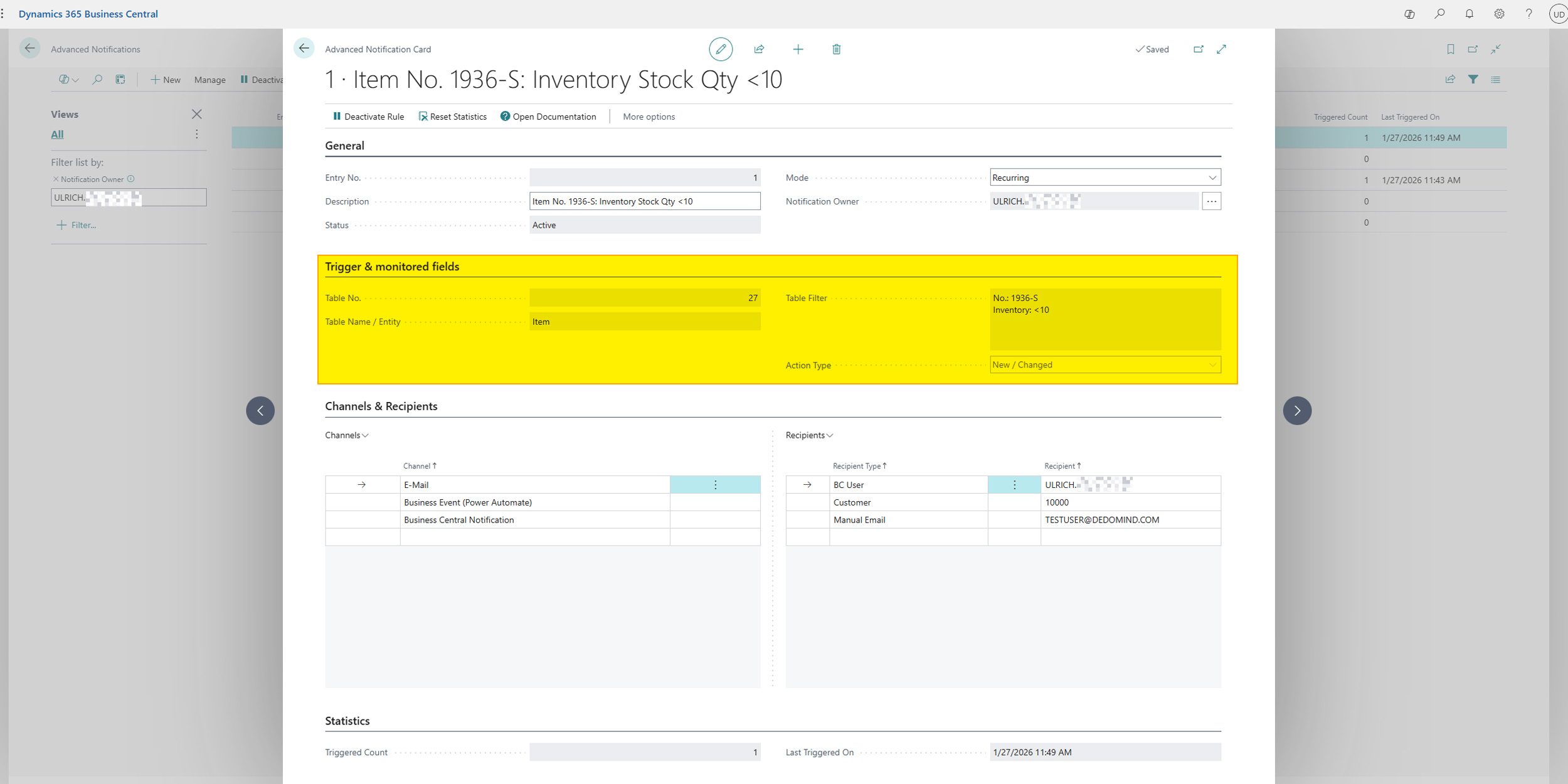
Fields/filters can only be edited when the notification is not Active.
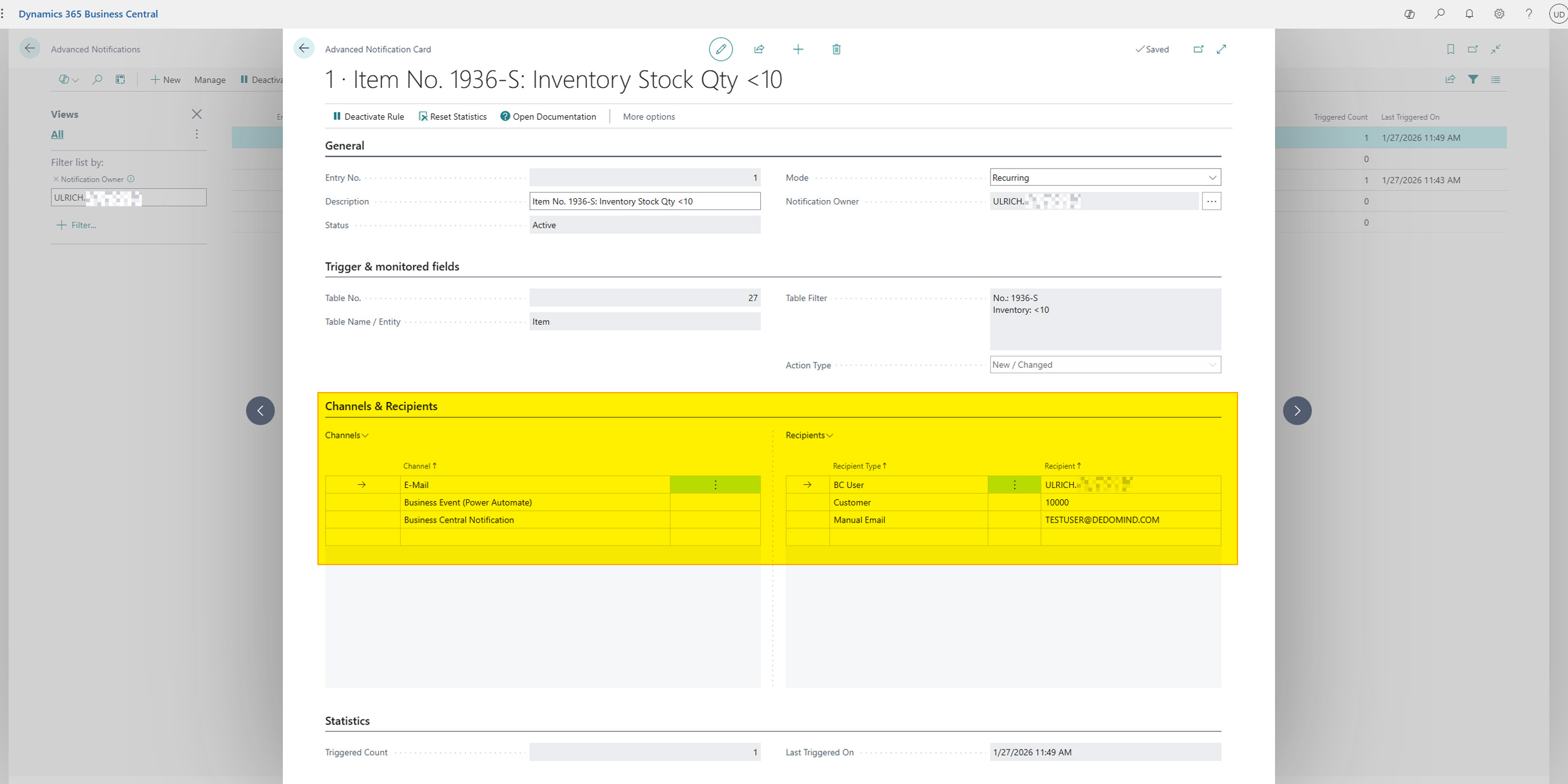
Channels & Recipients
In this area, you define how and to whom the notification is sent.
Channels
Define one or more delivery channels:
- Business Central Notification: Sends an internal notification that appears on the "My Notifications" page.
- Email: Sends a formatted email to recipients.
- Business Event: Triggers a Business Event for Power Automate.
Recipients
Define one or more recipients:
- BC User: A specific Business Central user.
- BC User Group: All users in a user group.
- Customer: Primary email address of the customer.
- Vendor: Primary email address of the vendor.
- Manual Email: Enter an email address manually.
Statistics
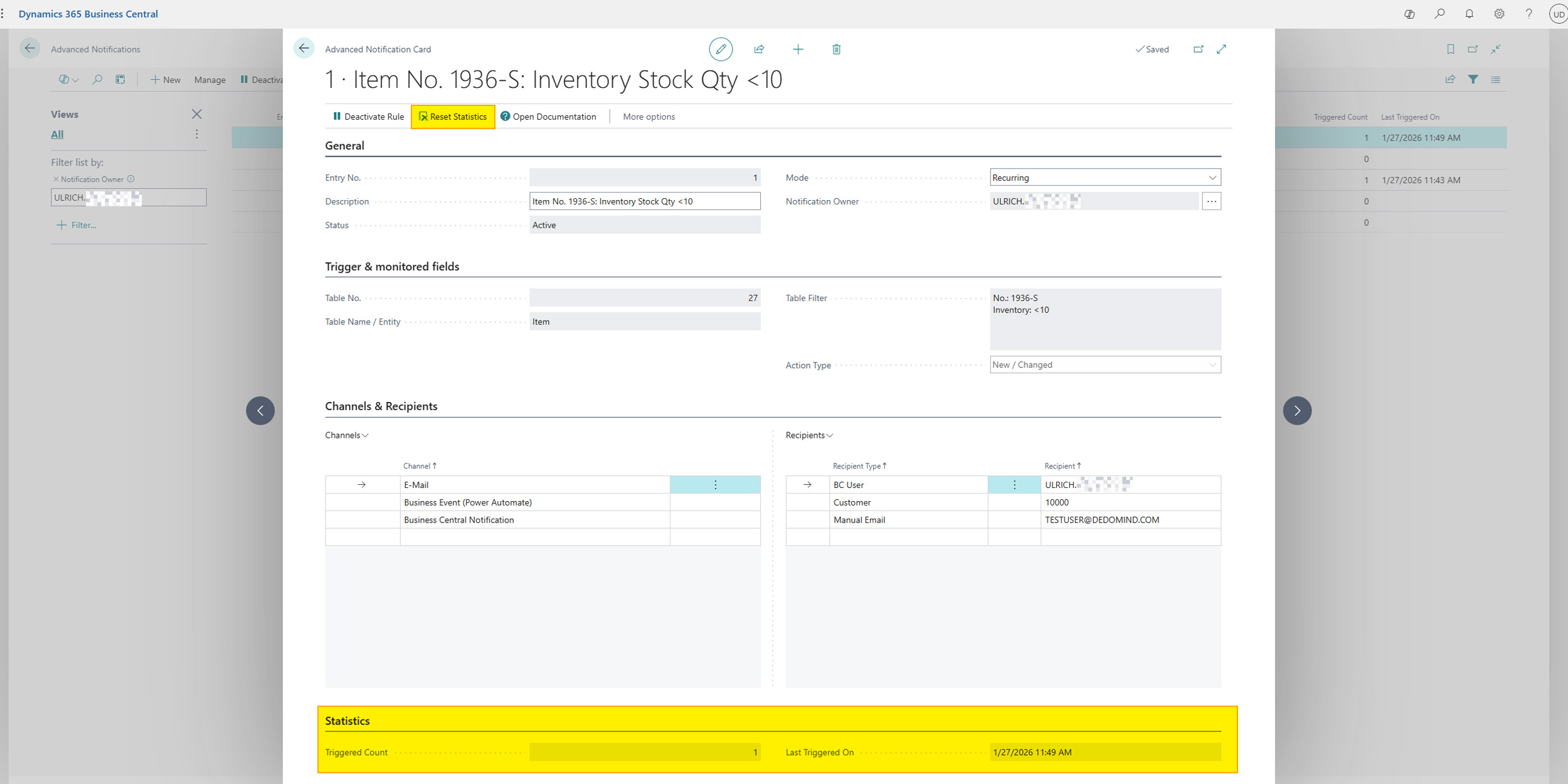
This area gives you a quick overview of the notification's activity.
- Triggered Count: Counts how many times the notification has been triggered.
- Last Triggered At: Shows the date and time of the last trigger.
- Action "Reset Statistics": Via the actions, you can reset these counters if needed.
Help
- App page on our website: Here you can find prices, more features, and contact information
- Microsoft AppSource: open here
- Contact form: Open contact form