My Notifications
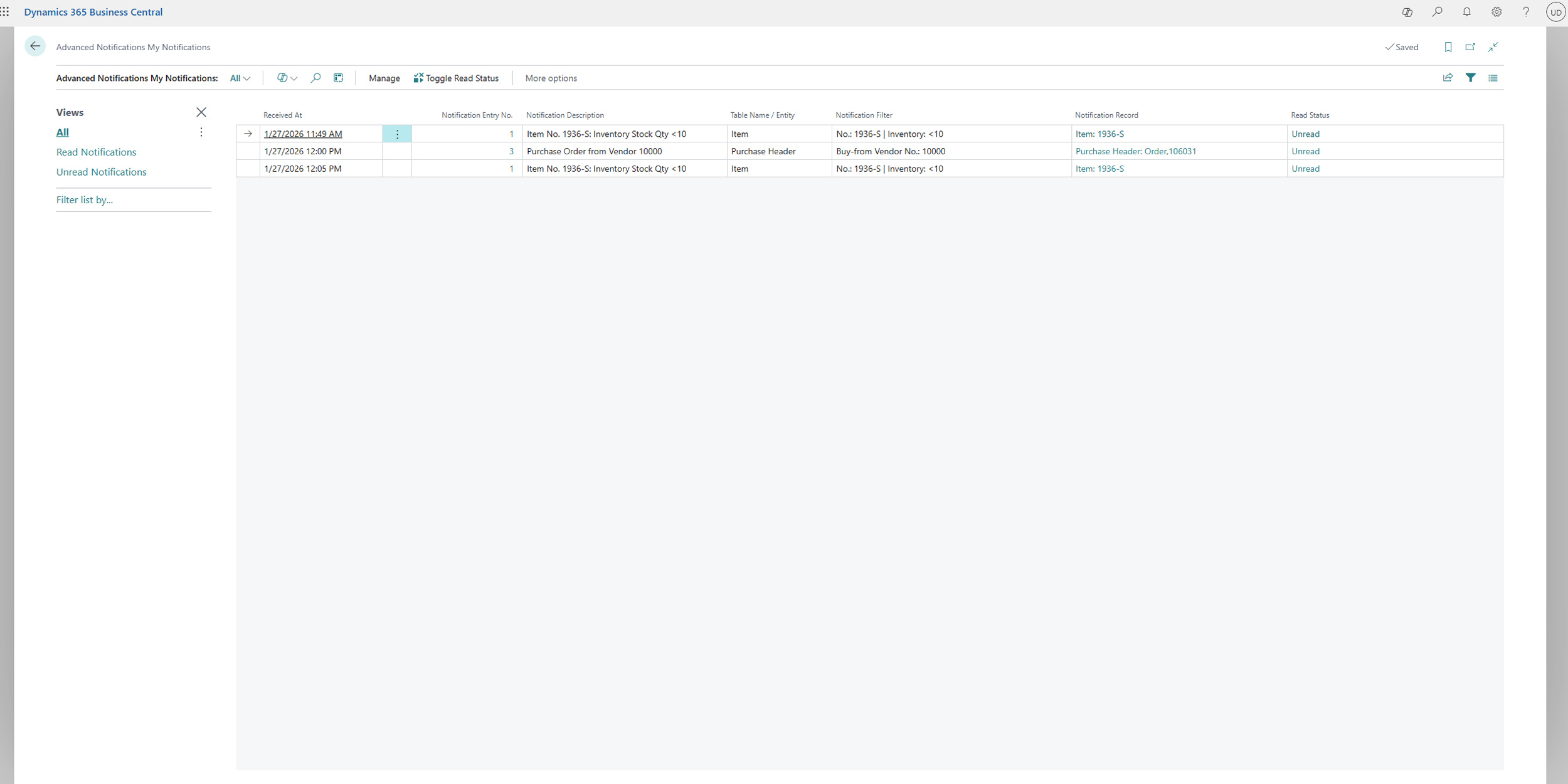
The "Advanced Notifications My Notifications" page is your personal inbox for all notifications delivered to you via the "Business Central Notification" channel.
Search for "My Notifications" to open the page.
Your Personal View
This page is automatically filtered to the currently logged-in BC user, so you only see your own notifications. You don't have to work through other users' notifications.
Read and Unread Status
Each notification has a status indicating whether it has already been acknowledged.
- Recognize Status: In the "Read Status" column, you can see whether a message is "Read" or "Unread".
- Change Status:
- Click directly on the status ("Read" or "Unread") in the row to toggle it.
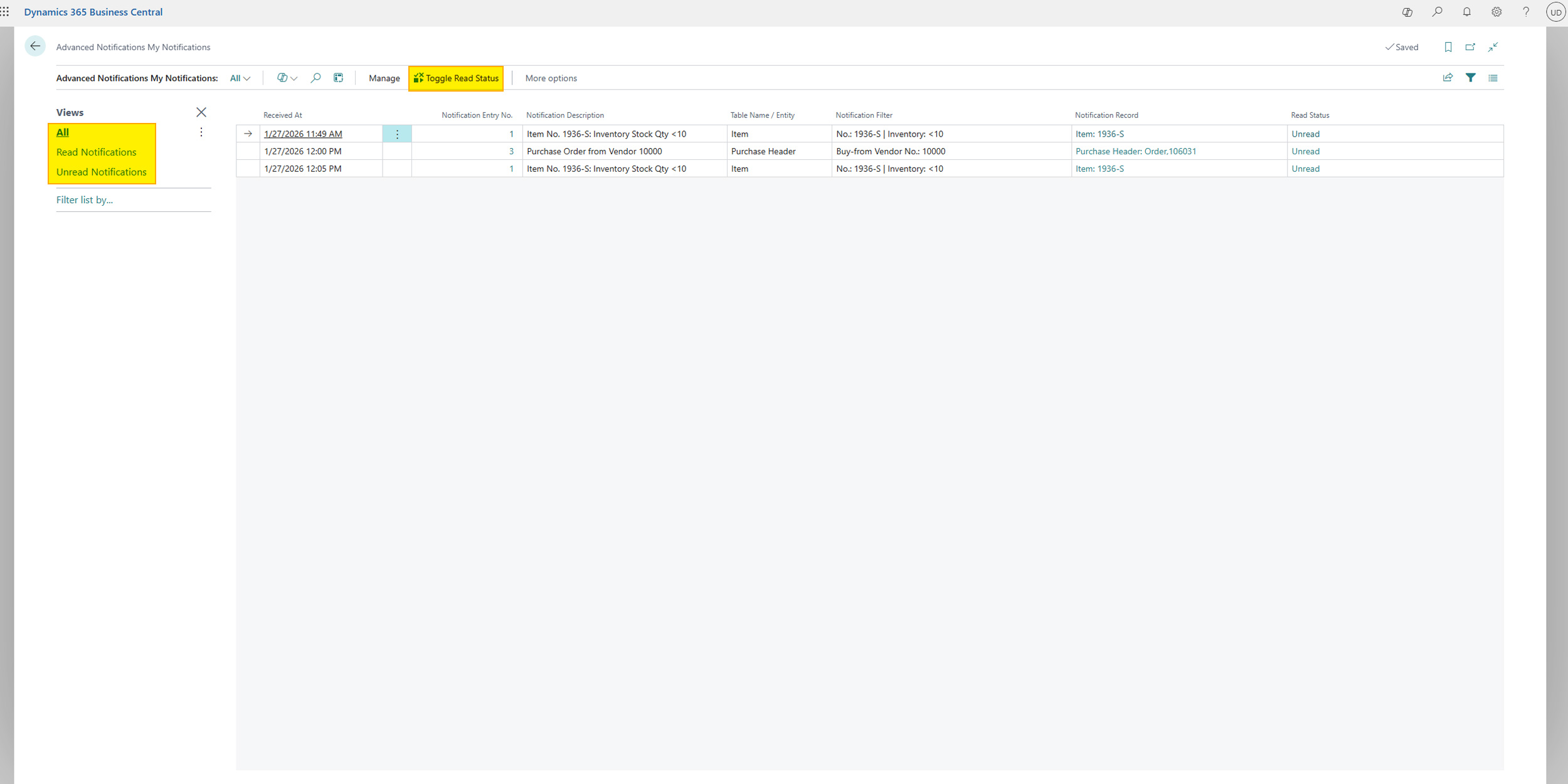
- Alternatively, you can select one or more rows and use the "Toggle Read Status" action.
Predefined Views
To help you maintain overview, there are two predefined views you can switch between:
- Read Notifications: Shows only the notifications you have already marked as "Read".
- Unread Notifications: Shows only the new, unread notifications.
Navigation and Actions
- Jump to Record: Click on the field in the "Notification Record" column to jump directly to the record (e.g., the specific customer or sales order) that triggered the notification.
- Jump to Rule: Click on the number in the "Notification Rule No." field to view the configuration of the rule that triggered this notification.
- Delete: You can easily delete notifications you no longer need. Select one or more rows and click "Delete".
Help
- App page on our website: Here you can find prices, more features, and contact information
- Microsoft AppSource: open here
- Contact form: Open contact form