Setup in Business Central
Simple Restore uses the Change Log in Business Central as its data source. This means: Only changes that are logged from the time of activation onward are visible later in Simple Restore. The earlier the log is enabled and configured, the more historical data is available.
Setup Wizard
After installation, the Simple Restore Setup Wizard guides you through the required steps. You can reopen it at any time via Assisted Setup.
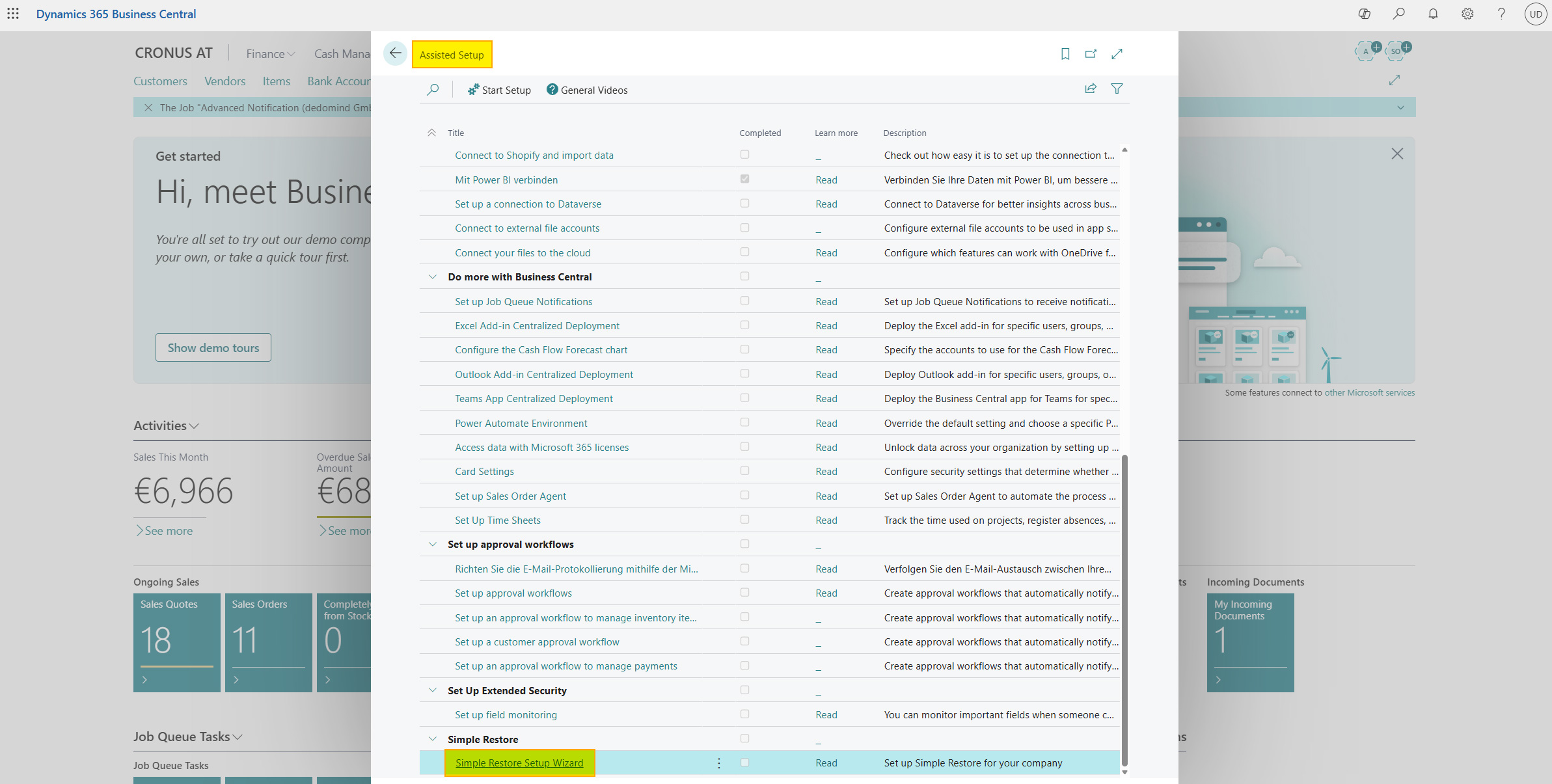
Step 1 - Welcome
The wizard welcomes you and gives an overview of setup. Click Next to begin.
Step 2 - Licensing
Follow the instructions in the wizard to license the app. Licensing Documentation
Step 3 - Configure Change Log
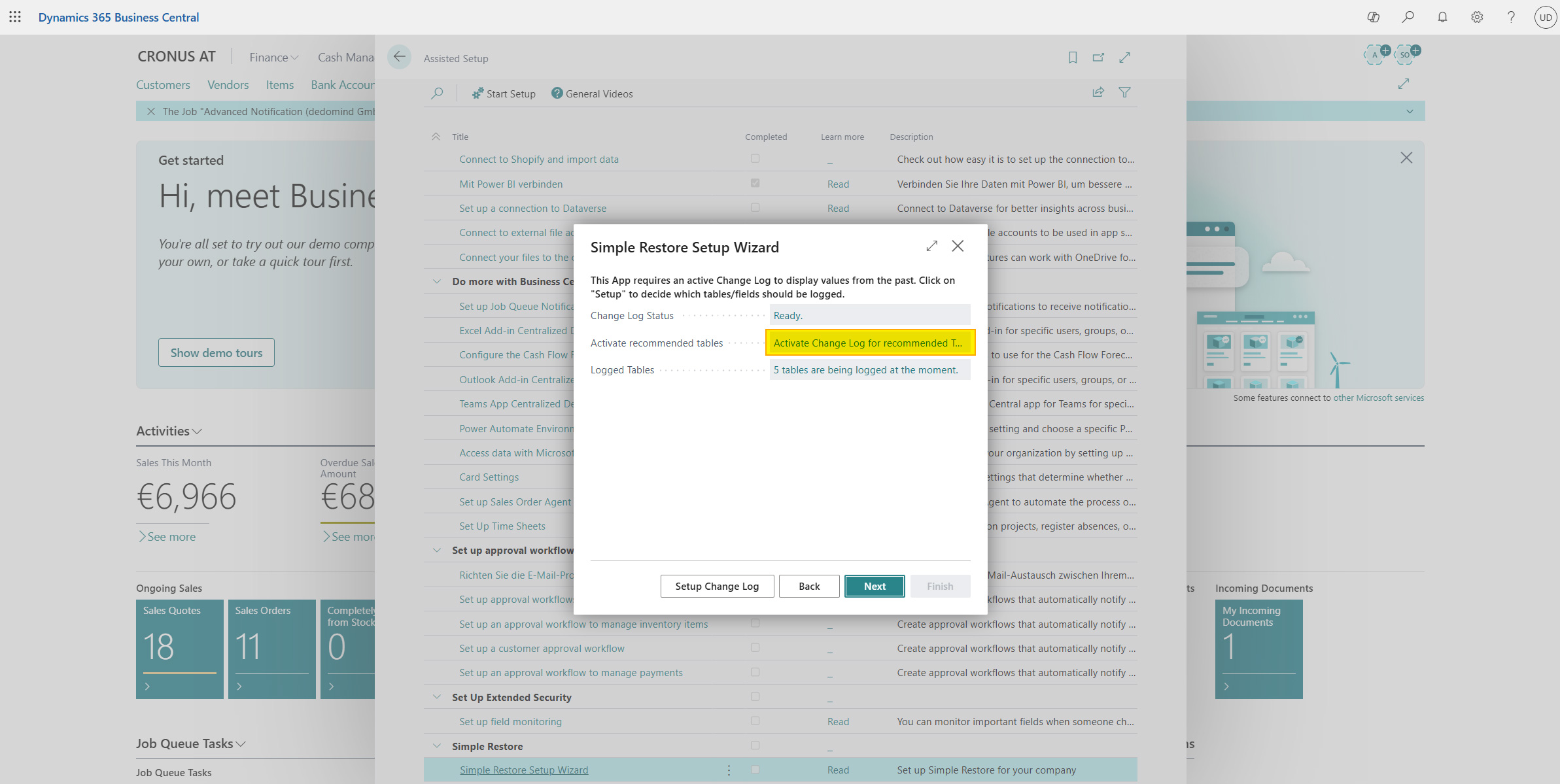
Simple Restore requires an active Change Log in Business Central.
In this step, you have the following options:
| Action | Description |
|---|---|
| Change Log Status | Shows whether Change Log is enabled. Click it to open setup. |
| Enable Recommended Tables | Enables Change Log for all fields of the recommended tables with one click. |
| Logged Tables | Shows the number of currently logged tables. Click to add more tables. |
Enabling Change Log for all fields can affect performance and increase database usage. Consider logging only fields relevant to your scenario and set up a retention policy.
Step 4 - Completion
Setup is complete. Click Finish to close the wizard.
Permissions
Simple Restore includes the permission set DEM SR User, which covers the following objects:
- Access to the Simple Restore worksheets
- Read and write permissions for the required tables
- Execute permissions for the codeunits
Assign this permission set to users who should use Simple Restore.
Detailed explanation
Enable Change Log
- Search in Business Central for Change Log Setup
- Enable the Change Log Enabled switch
- Select which tables and fields should be logged
In the Setup Wizard (step 3), you can set up logging for the most important tables with one click on Enable Recommended Tables.
Recommended tables
Simple Restore recommends enabling Change Log for the following tables:
| Table No. | Name |
|---|---|
| 14 | Salesperson/Purchaser |
| 18 | Customer |
| 23 | Vendor |
| 27 | Item |
| 36 | Sales Header |
| 38 | Purchase Header |
When using quick activation, all fields are logged for all these tables (Insert, Modify, Delete).
Selective field configuration
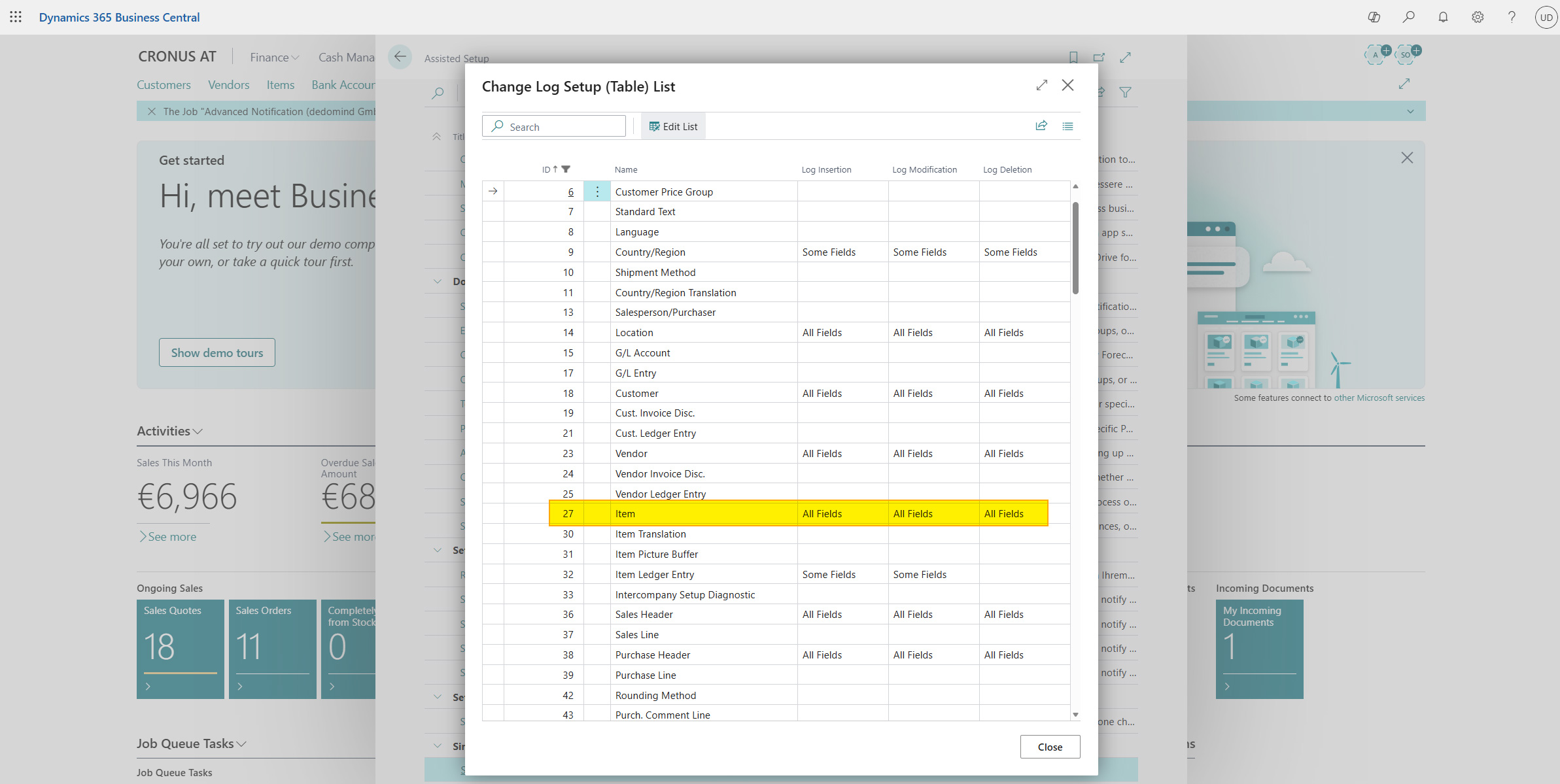
For better performance and lower database storage usage, we recommend logging only truly relevant fields:
- Open Change Log Setup
- Click Tables and select a table
- Define for each table whether All Fields or Some Fields should be logged
- For Some Fields: Select the required fields from the list
The three loggable event types are:
- Insert - New records
- Modify - Changed field values
- Delete - Deleted records
Retention policies
Because Change Log can consume significant storage over time, we recommend setting up a Retention Policy:
- Search in Business Central for Retention Policies
- Create a new policy for the Change Log Entry table
- Define how long entries should be kept (for example, 2 years)
Adjust configuration after initial setup
You can adjust configuration at any time:
- Add more tables: Change Log Setup -> Tables -> New Line
- Reopen Setup Wizard: Search for Assisted Setup -> Simple Restore Setup Wizard
- Manage license: Open the licensing wizard via the Setup Wizard
Help
- App page on our website: Here you can find prices, more features, and contact information
- Microsoft AppSource: open here
- Contact form: Open contact form