Setup in Business Central
After installing the app from AppSource, a one-time setup is required to activate the core features. A wizard conveniently guides you through this process.
Setup Wizard
The easiest way to set up Advanced Notifications is to use the assisted setup wizard.
- Search for "Assisted Setup" and open the page.
- Find the "Advanced Notifications Setup Wizard" entry in the list and click on it to start the wizard.
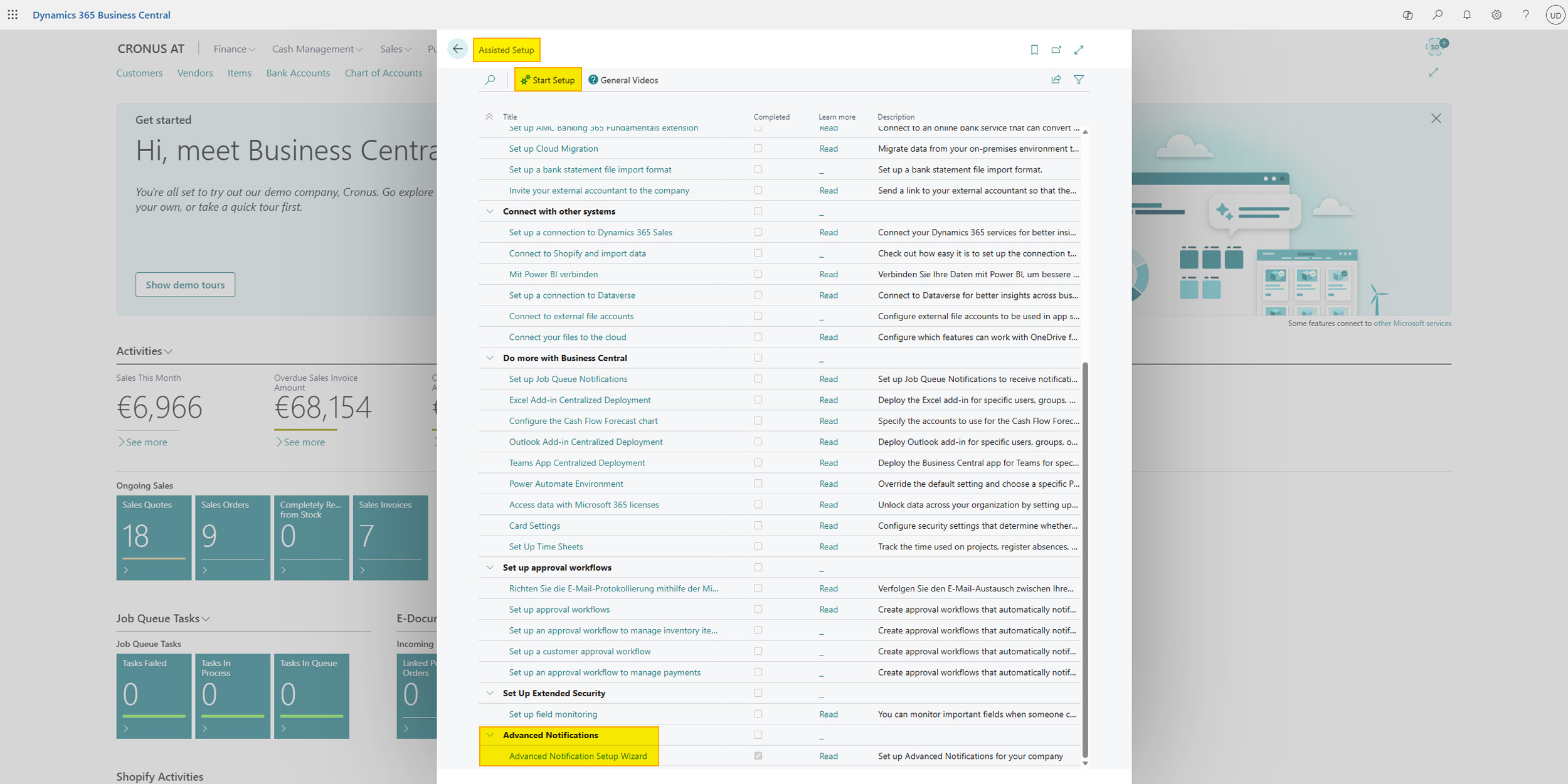
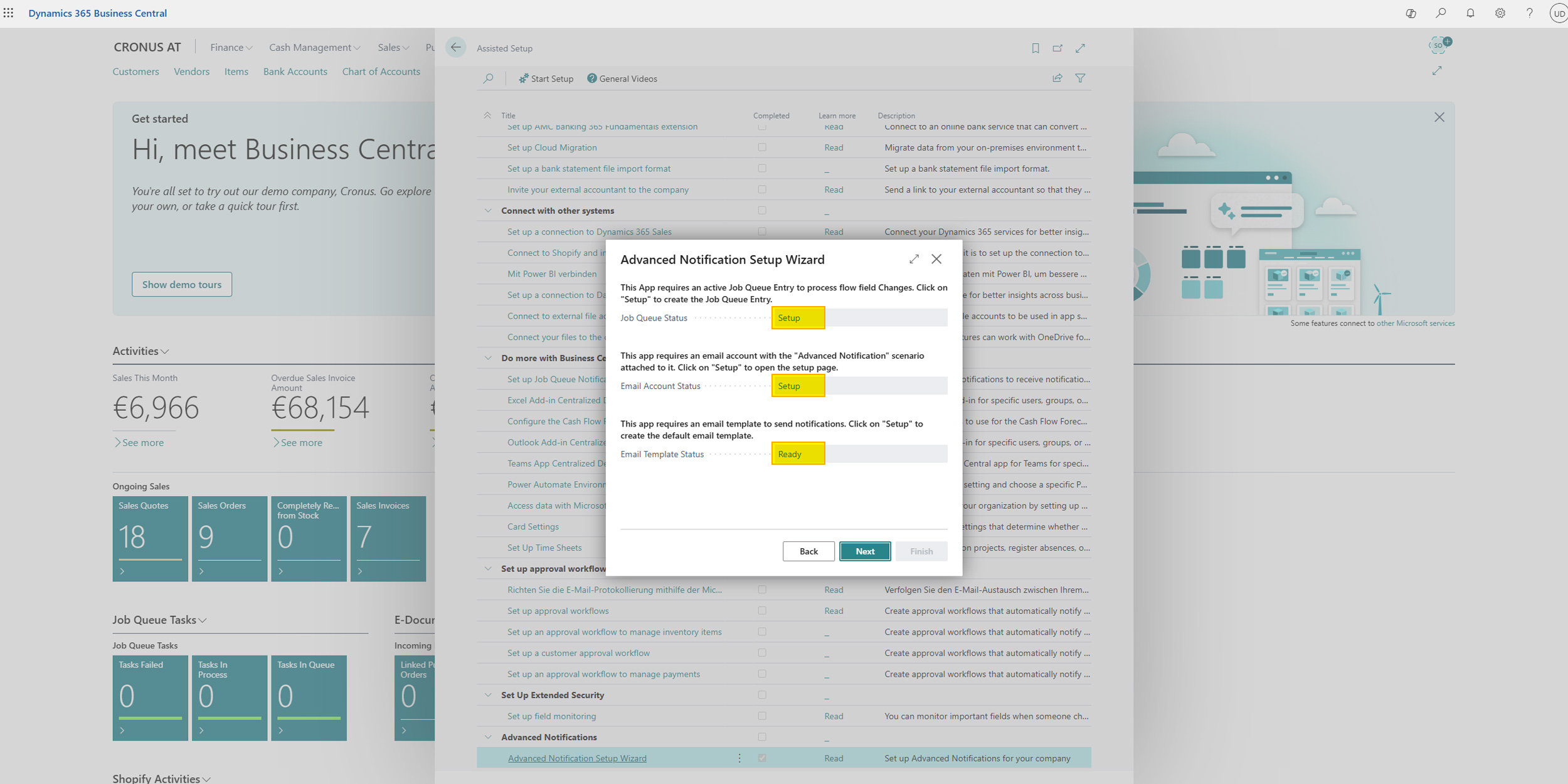
The wizard consists of four essential steps:
Step 1: Licensing
Follow the instructions in the wizard to license the app. Licensing Documentation
Step 2: Job Queue
A job queue is required to process notification rules in the background and trigger notifications.
The wizard automatically creates and configures a job queue entry responsible for processing notifications.
Step 3: Email Account
To send notifications via email, you need a configured email account with the Advanced Notifications scenario assigned to it.
To ensure this, click Set up next to "Email Account - Status" in the wizard.
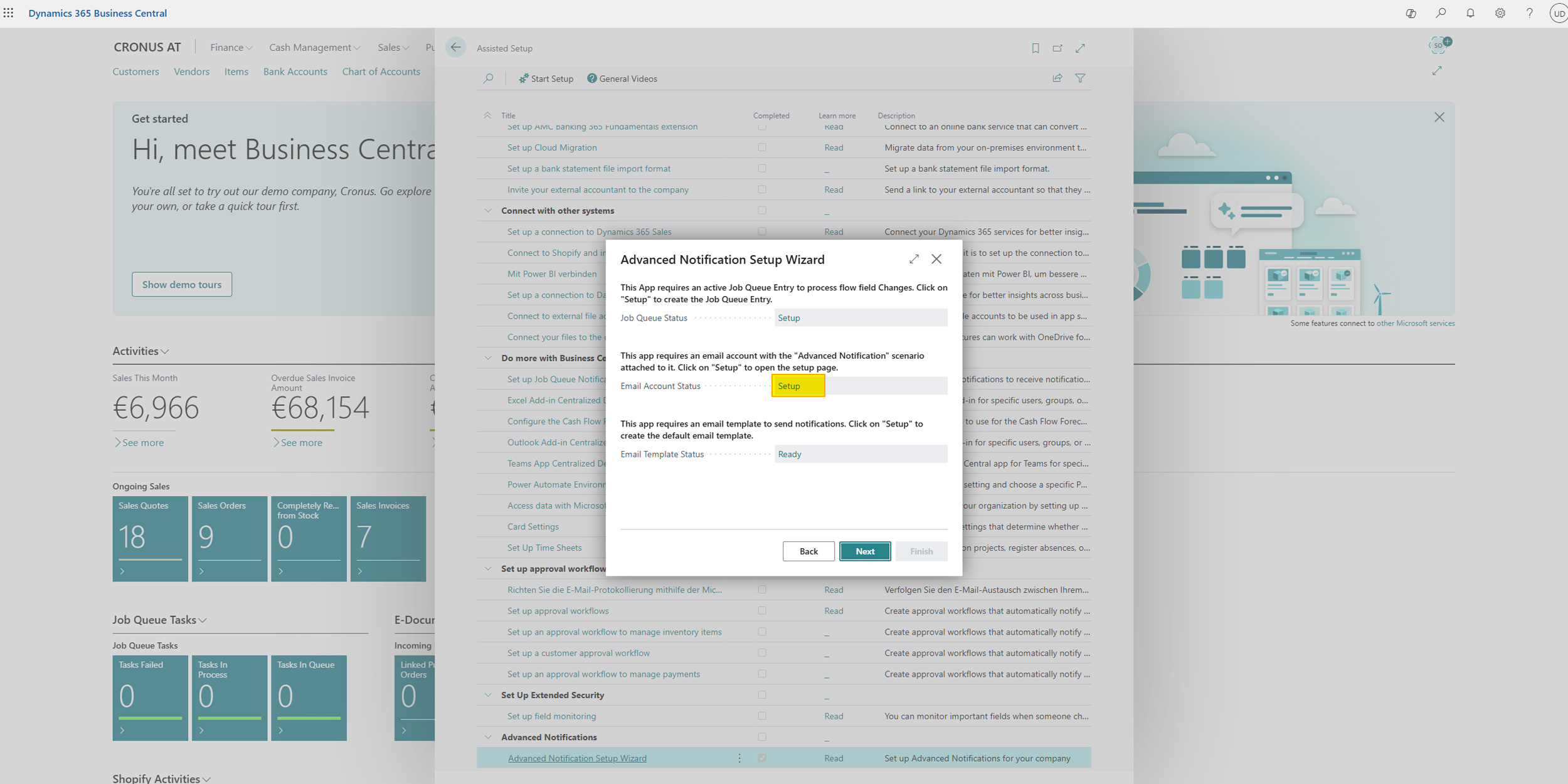
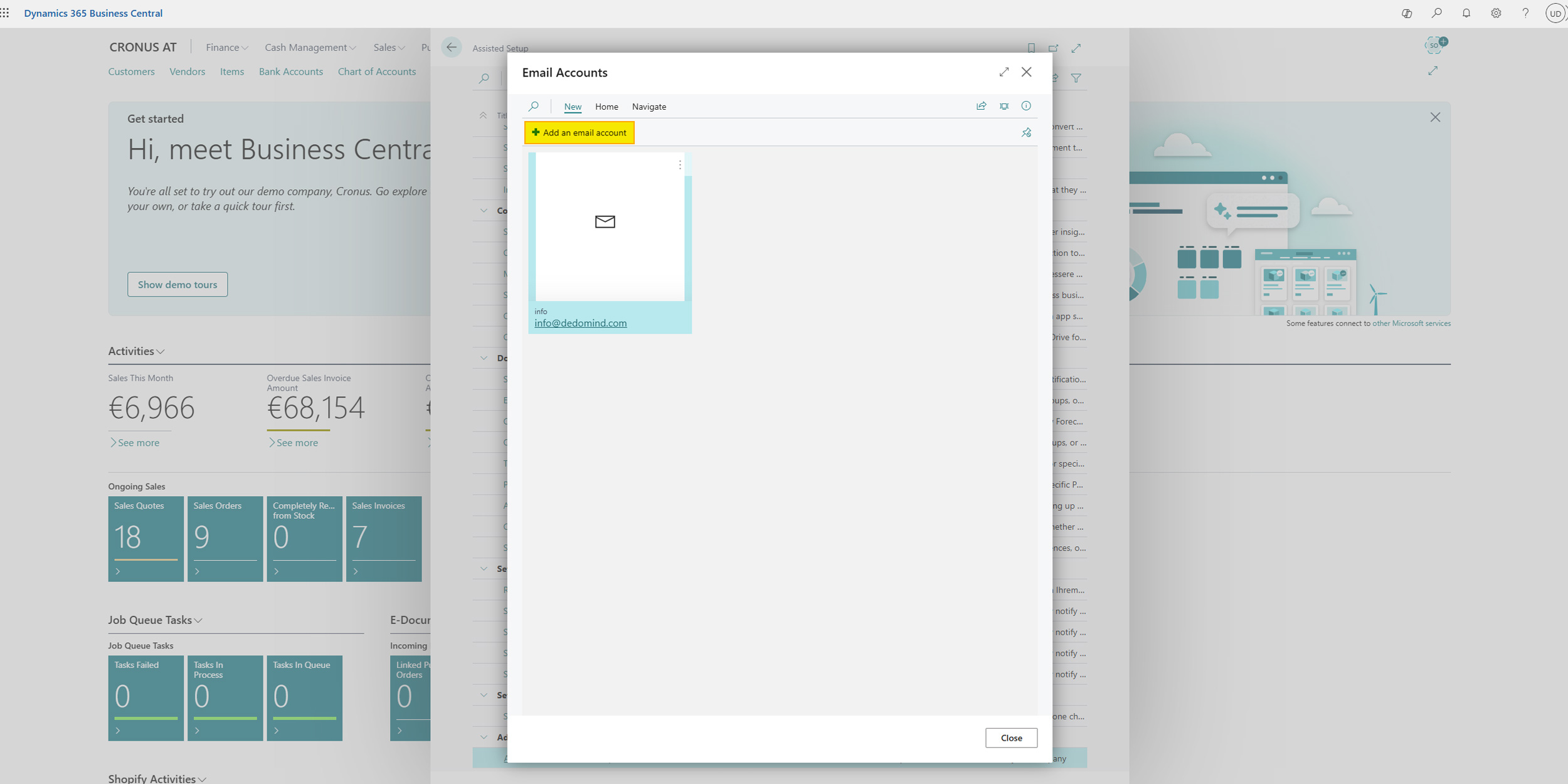
If you haven't created a profile yet or want to create a new profile, click Add an email account in the "New" menu and complete the setup.
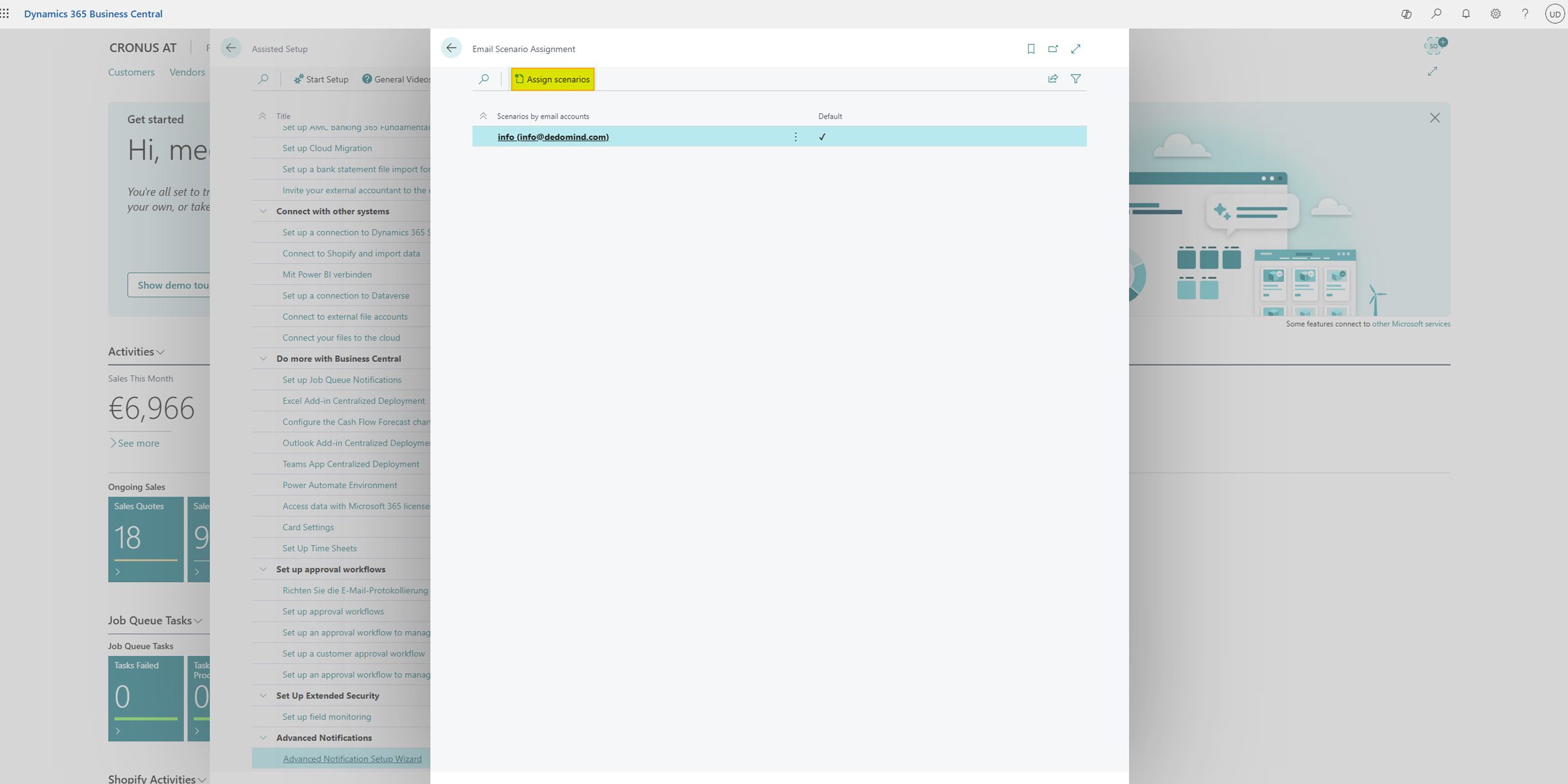
Select the desired profile and click Email Scenarios in the "Navigate" menu.
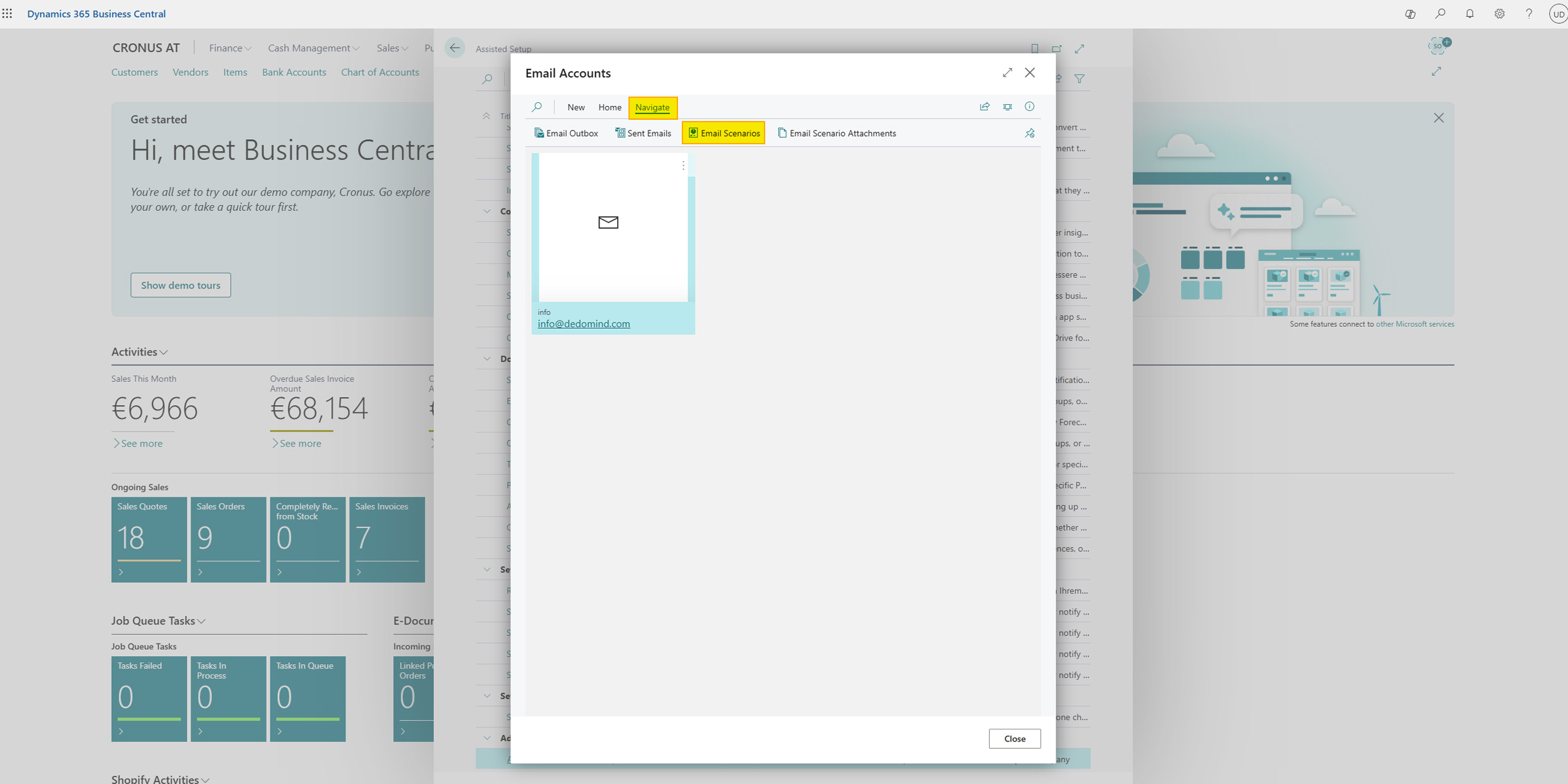
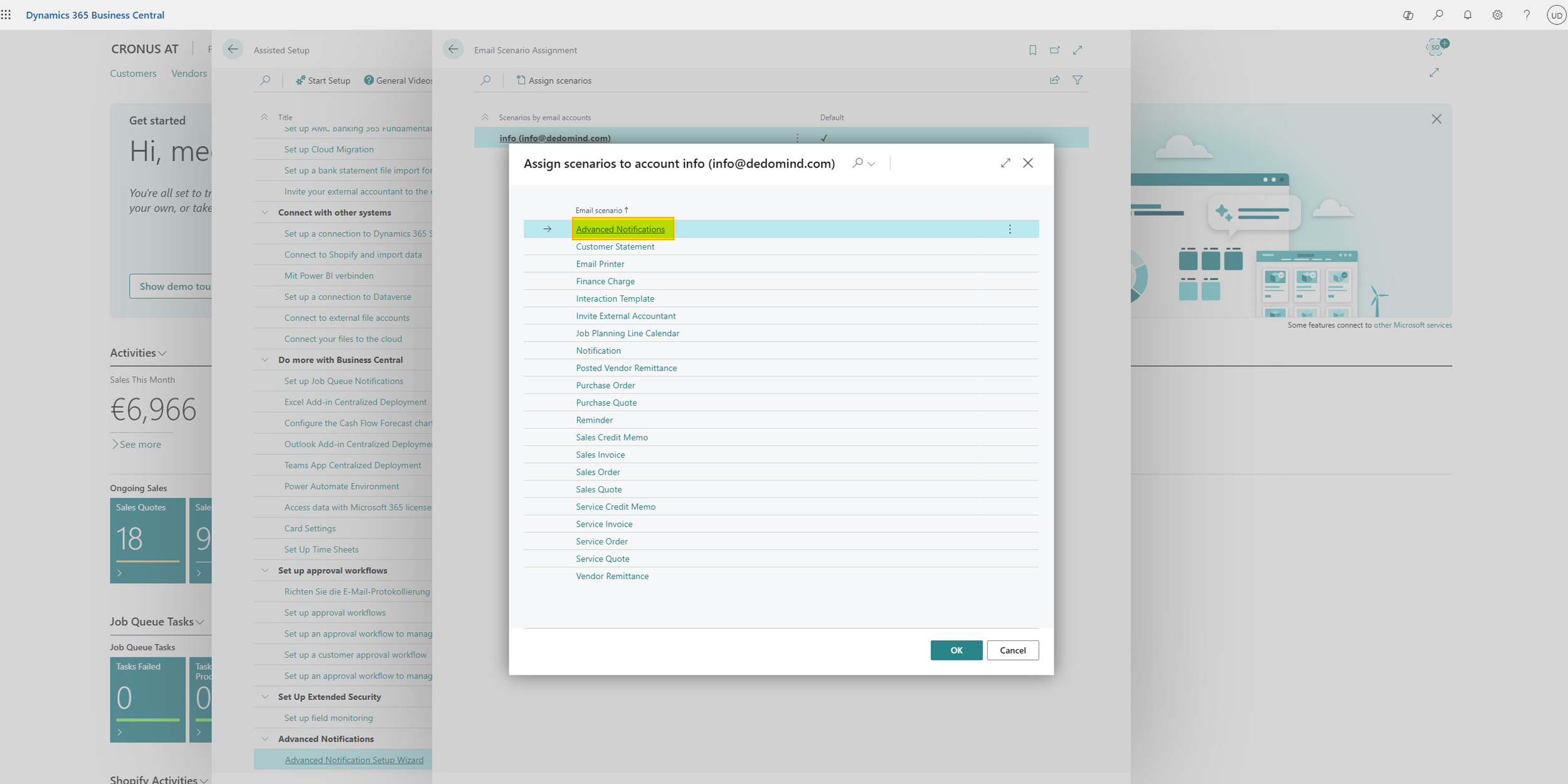
Then you can use the Add email scenarios button to open a list of available scenarios.
Search for the Advanced Notifications entry and select it.
Step 4: Email Template
A default template is required for sending notifications via email.
The wizard sets up a multilingual default email template (for German and English), which you can customize later.
Once all steps show "Ready" status, you can complete the wizard by clicking "Finish".
Customize Email Template and Placeholders
You can customize the email templates used for notifications at any time.
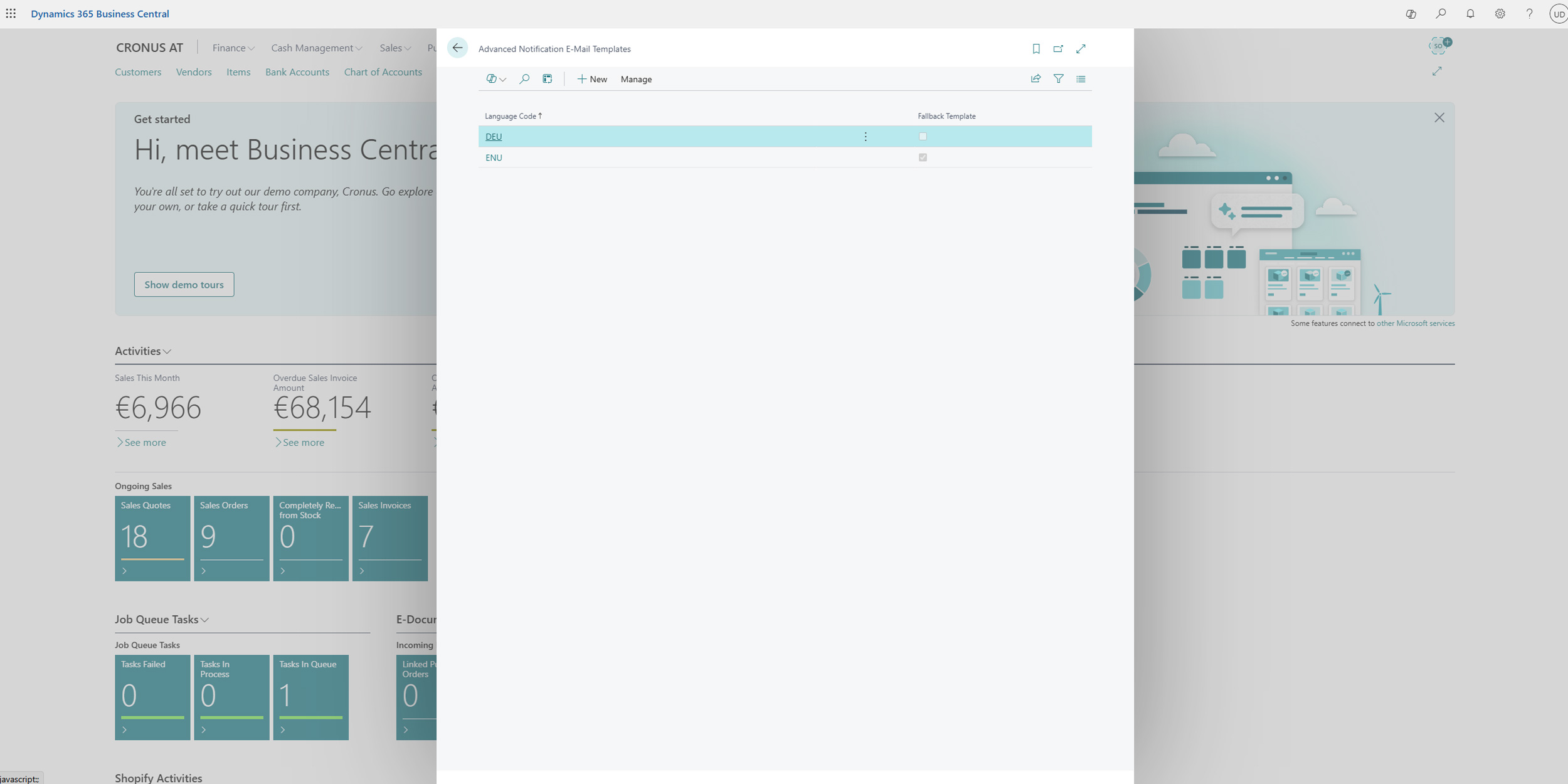
- Search for "Advanced Notifications Email Templates" and open the page.
- Select the template for the desired language and open the card.
Important Fields in Email Template
| Field | Description |
|---|---|
| Fallback Template | Sets the current template as default if no email template is found in the recipient's target language. |
| Editor Mode | Switch between Visual Editor and HTML Editor. |
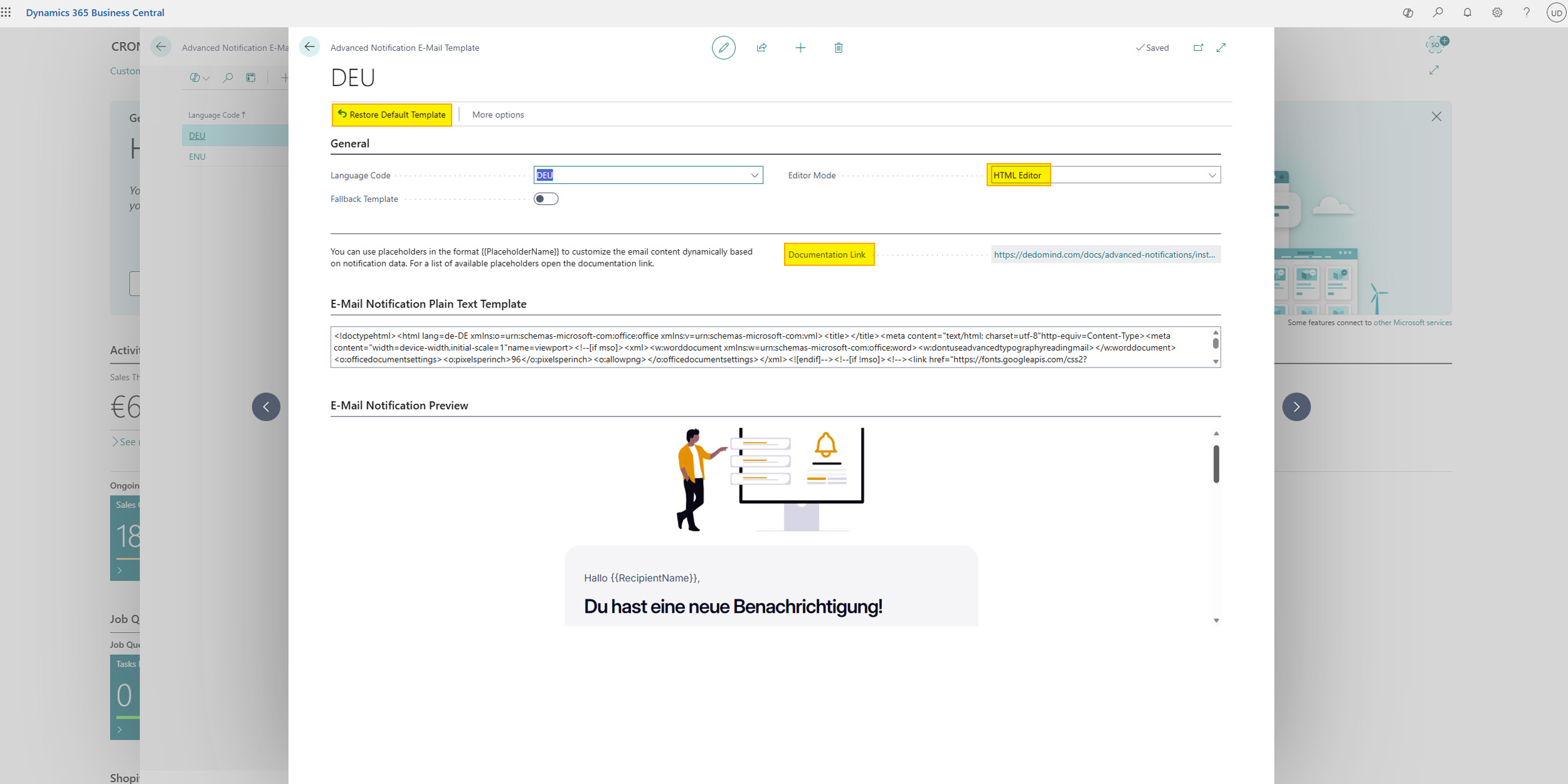
You can always switch from Visual Editor to HTML Editor without loss. Switching in the other direction may result in information loss.
Available Placeholders
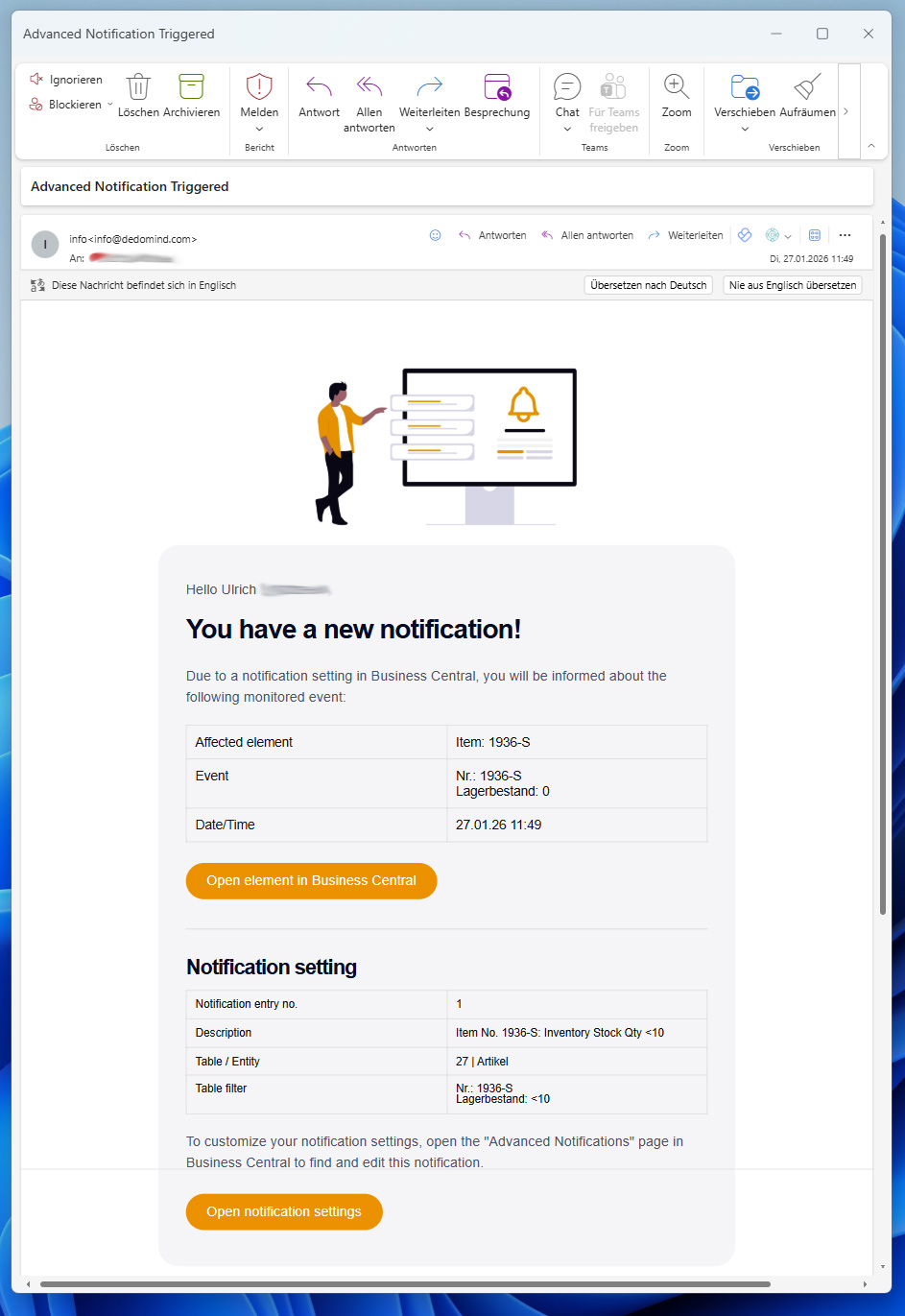
In the templates, you can use placeholders to insert dynamic information from the notification and the triggering record.
| Placeholder | Description |
|---|---|
{{RecipientName}} | The recipient's name (e.g., the BC user's full name). |
{{Record}} | The RecordId of the modified record (e.g., "Customer: 10000"). |
{{RecordLink}} | A direct link to the modified record in the Business Central web client. |
{{RecordEvent}} | A formatted overview of the fields and values that triggered the notification. |
{{TriggeredAt}} | The timestamp (date and time) when the notification was triggered. |
{{NotificationNo}} | The unique notification number. |
{{NotificationDescription}} | The description of the notification. |
{{NotificationTableName}} | The name of the table monitored by the rule (e.g., "Customer"). |
{{NotificationTableNo}} | The number of the table monitored by the rule (e.g., 18). |
{{NotificationTableFilter}} | The filters defined in the notification. |
{{NotificationLink}} | A direct link to the notification card in Business Central. |
Help
- App page on our website: Here you can find prices, more features, and contact information
- Microsoft AppSource: open here
- Contact form: Open contact form