

Simple Restore for Business Central

Summary
Recover data with just a few clicks and undo unwanted changes.
 Jetzt bei Microsoft herunterladen
Pricing
30-day free trial with no strings attached!
Prices (net), based on the total number of active Business Central users in the tenant:
Monthly subscription
| 1-5 Users | € 2,90/User |
| 6-20 Users | € 2,49/User |
| 21-50 Users | € 1,90/User |
| from 51 Users | on request |
Annual subscription
| 1-5 Users | € 30,90/User |
| 6-20 Users | € 24,90/User |
| 21-50 Users | € 18,90/User |
| ab 51 Users | on request |
Note: All users in the client must be licensed.
Description
Restoring a data backup is often a tedious task in day-to-day operations—or even something that can only be done by the IT department—and often affects the entire system. Now there’s an easier way that anyone can use:
With “Simple Restore,” any user can restore data from individual tables and fields from the past with just a few clicks.
This is ideal if a colleague next door unwittingly overrode the customer’s phone number the day before, or if the product department accidentally replaced the previously correct customs tariff number on an item with placeholders.
(1) Home & Filters:
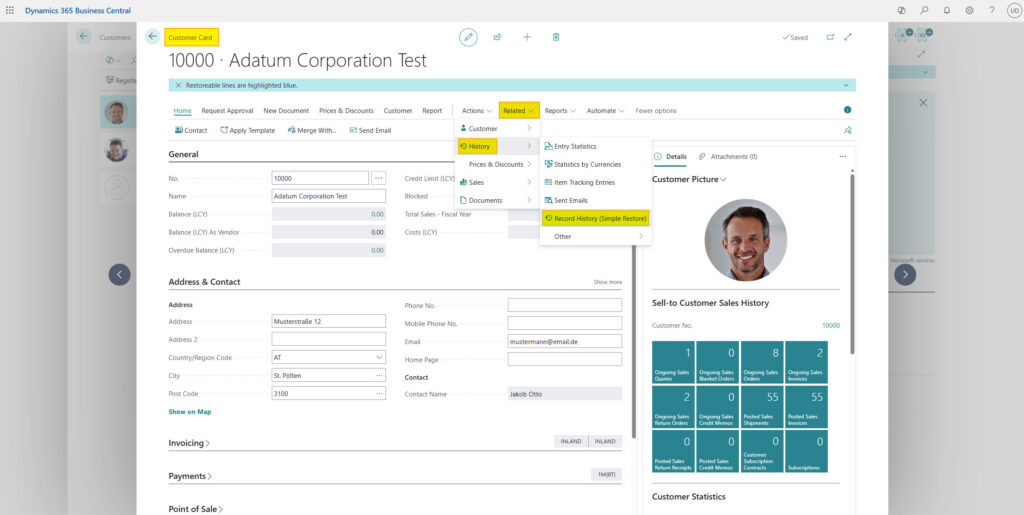
- Access the Simple Restore app directly from the entity card (e.g., Customer card, Item card, etc.) by clicking “Related” > ‘History’ and then the “Record History (Simple Restore)” button to view the record you came from, already pre-filtered.
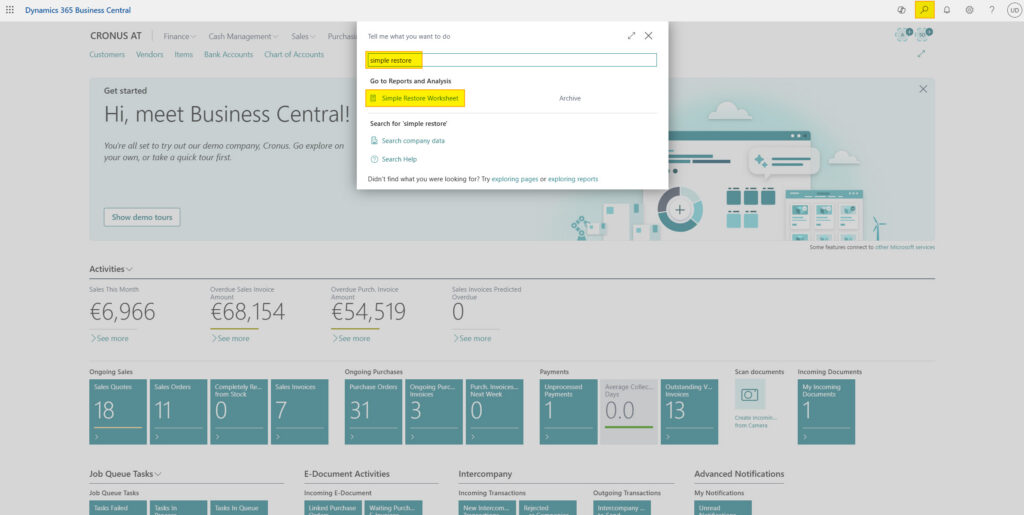
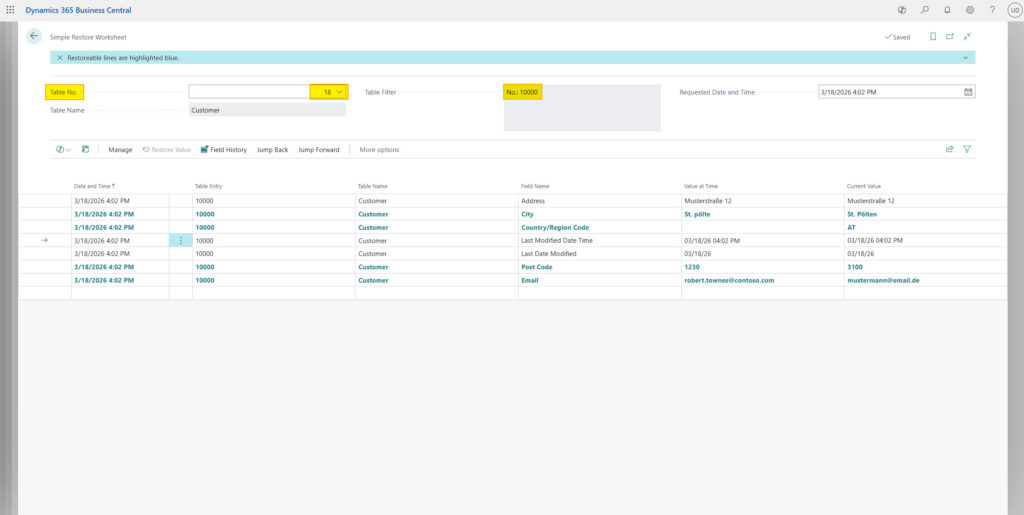
- Or: Start the recovery via the “Simple Restore Worksheet,” and filter by table/entity and a table filter to navigate to the desired record.
(2) Back in time:
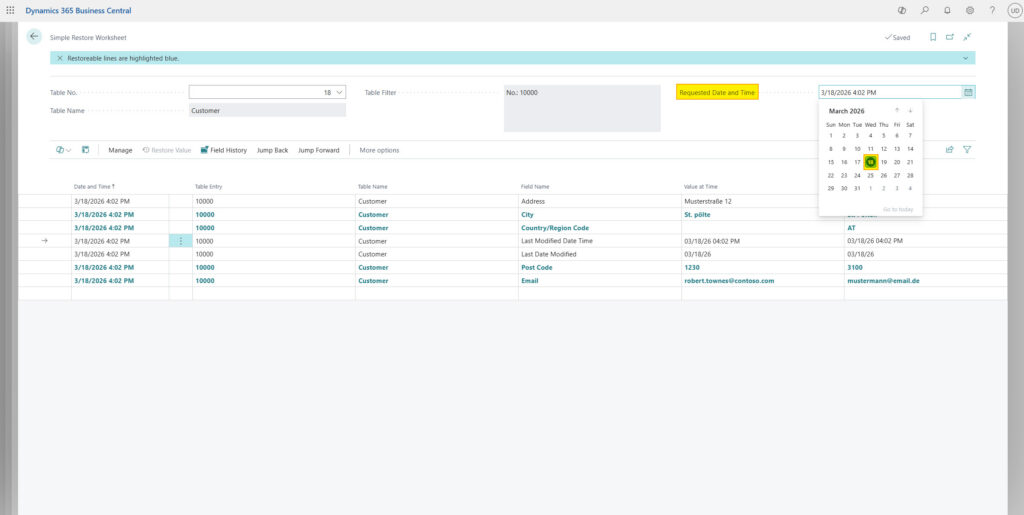
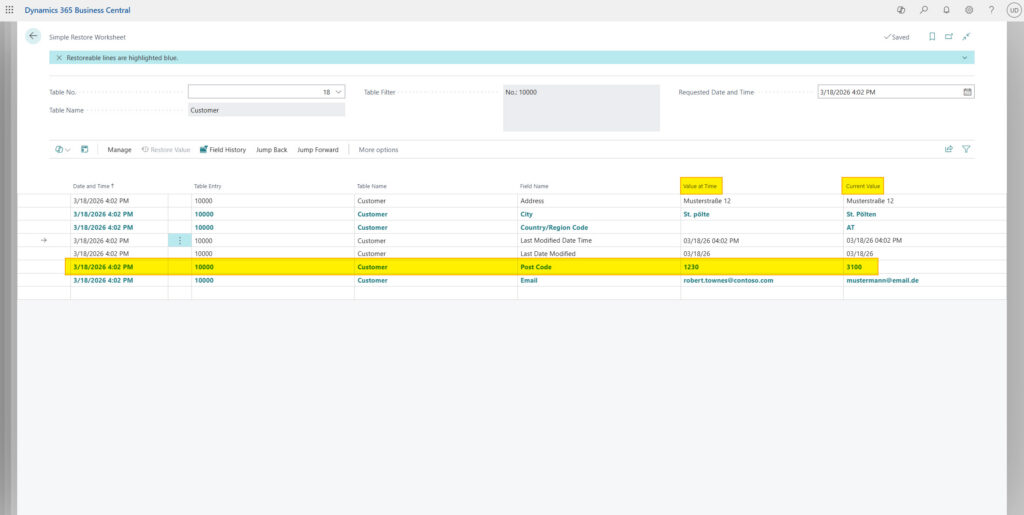
- Use the date and time filter to select the point in time you want to go back to.
- Check the results table below to see what data was available in Business Central at that time.
- Rows highlighted in blue color indicate where modified data exists.
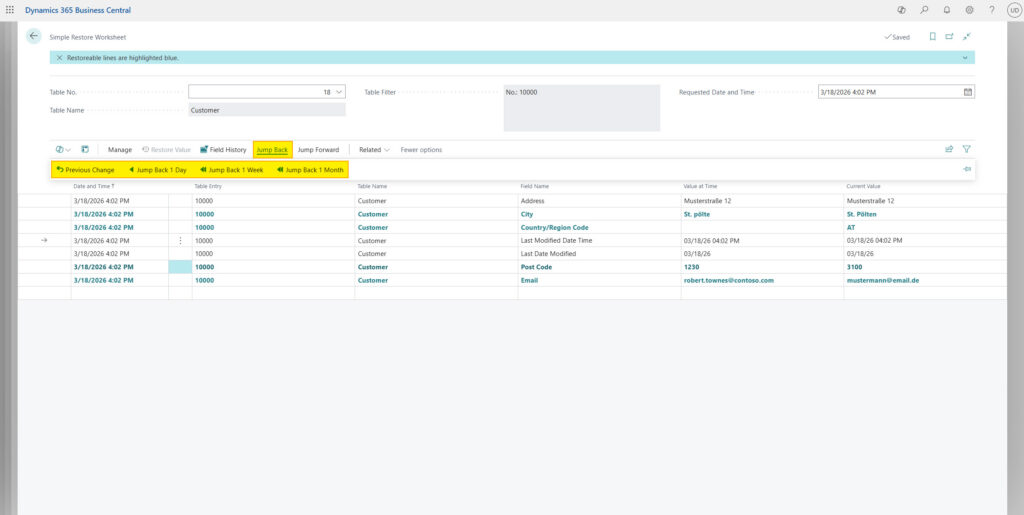
- If the data record for the previously selected time still contains the “current” (incorrect) data (i.e., is not marked in blue), use the quick-select buttons to go back by days or weeks, or manually select a new past date.
(3) Recover data:
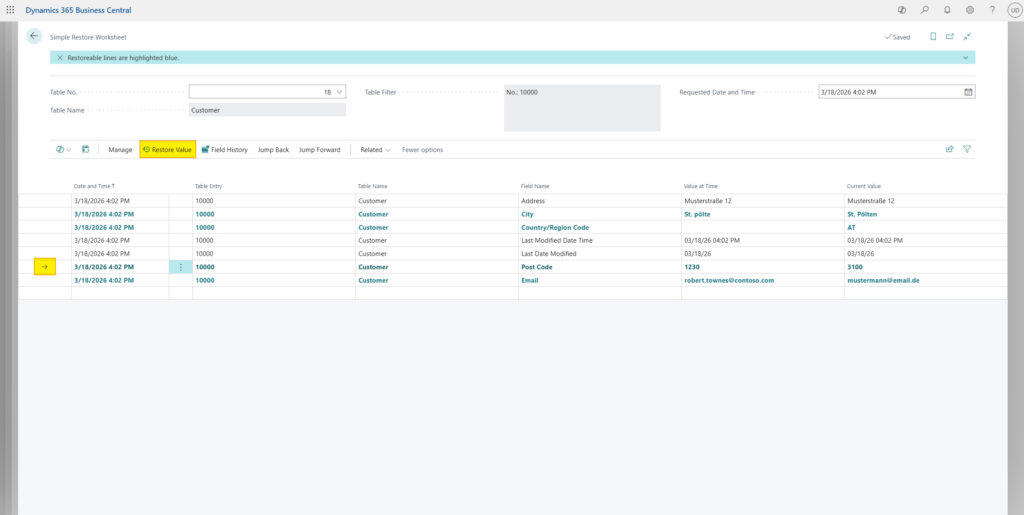
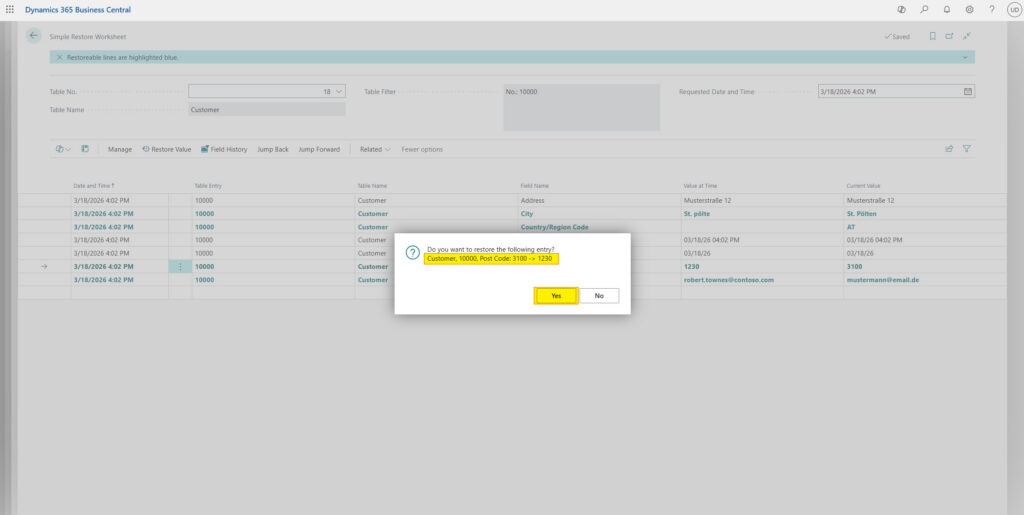
Click the “Restore Value” button to restore the selected row to its previous value with a single click. Done!
Pro tip: Use “Expert Mode” to restore multiple selected rows at once.
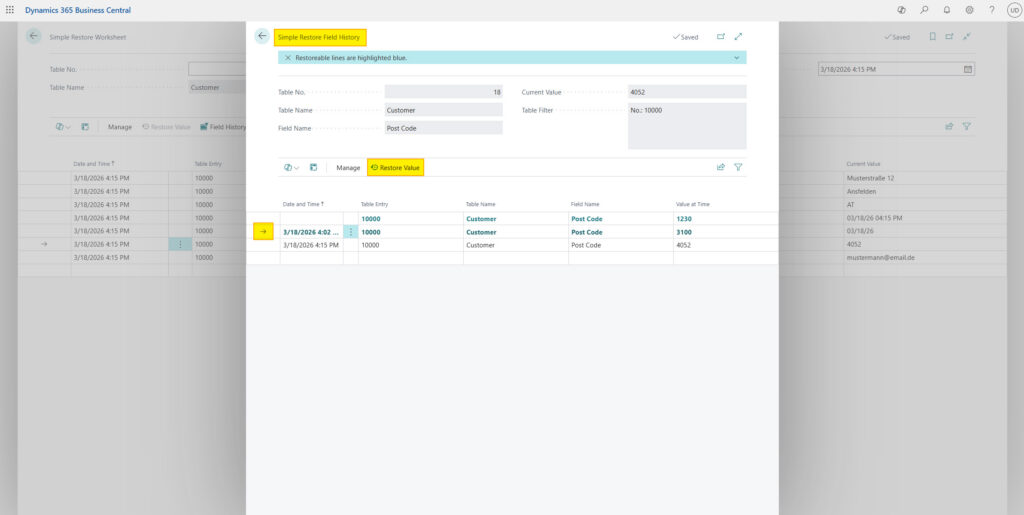
(4) Field history:
- If you are interested in a detailed field log and would like to see how a specific field has changed over time, open the field history by clicking the “Field History” button.
- There, you can also select a past entry and restore the data from that time.
Setup & Settings
Installation
Follow our installation instructions in the documentation to correctly install this extension from the Microsoft Marketplace. Then run the Setup Wizard in Business Central, which guides you through the app’s basic configuration with just a few clicks.
Technical Info: The Simple Restore app is based on the Business Central change log. This also allows for data recovery from before the app was installed.
Start:
Filter:
Back in time:
Field history:
Try it now!
You can download all of our Business Central apps for your BC environment from the official Microsoft Marketplace!

Is this exactly what you’re looking for?
Submit the order form now.

Not quite what you’re looking for?
It may quickly become apparent that this app is not suitable for you. Don’t hesitate to contact us so that we can tailor it to your individual needs!