

Advanced Notifications for Business Central

Summary
Set up custom rules to receive notifications about events in Business Central through various channels.
 Jetzt bei Microsoft herunterladen
Pricing
30-day free trial with no strings attached!
Prices (net), based on the total number of active Business Central users in the tenant:
Monthly subscription
| 1-5 Users | € 2,90/User |
| 6-20 Users | € 2,49/User |
| 21-50 Users | € 1,90/User |
| from 51 Users | on request |
Annual subscription
| 1-5 Users | € 30,90/User |
| 6-20 Users | € 24,90/User |
| 21-50 Users | € 18,90/User |
| from 51 Users | on request |
Note: All users in the client must be licensed.
Description
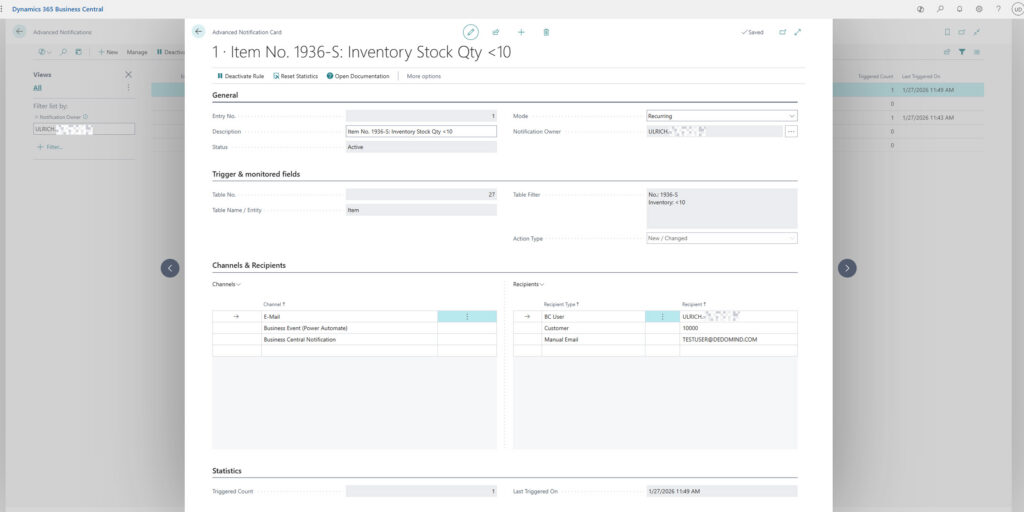
Use custom rules for each entity/table (e.g., product, customer, vendor, etc.) to define criteria for a monitored event that will trigger your notification. Specify how often, to whom, and via which channel the notification should be sent.
Examples of Use: “Notify me and Employee B as soon as…”
- the stock level of an item in the “Shoes” category falls below 10
- a new customer is created in Spain
- a purchase order with a delivery date after December 31, 2026 changes to “Approved” status
- a vendor from China has a balance exceeding €10,000.00
- a task queue encounters an error
- and much more…
General:
- Give your notification rule a descriptive name so you can find it more easily and clearly in the list of all rules.
- Duplicate an existing notification rule to create a slight variation based on it, without having to start from scratch.
- Check the statistics to see how often the event has occurred and when the notification was last sent.
Trigger:
First, select the base table (e.g., Items) that you want to monitor. Use table filters to specify which fields should be monitored and which criteria and rules should apply (e.g., stock level less than 10).
The following actions are monitored:
- Add / Update: When a table entry is created or modified Example use case:
“Notify me when an item is created in the Shoes category.”
Mode:
- One-time: A notification is sent once when the event occurs
- Recurring: A notification is sent every time the event occurs
Recipient (Multiple selection):
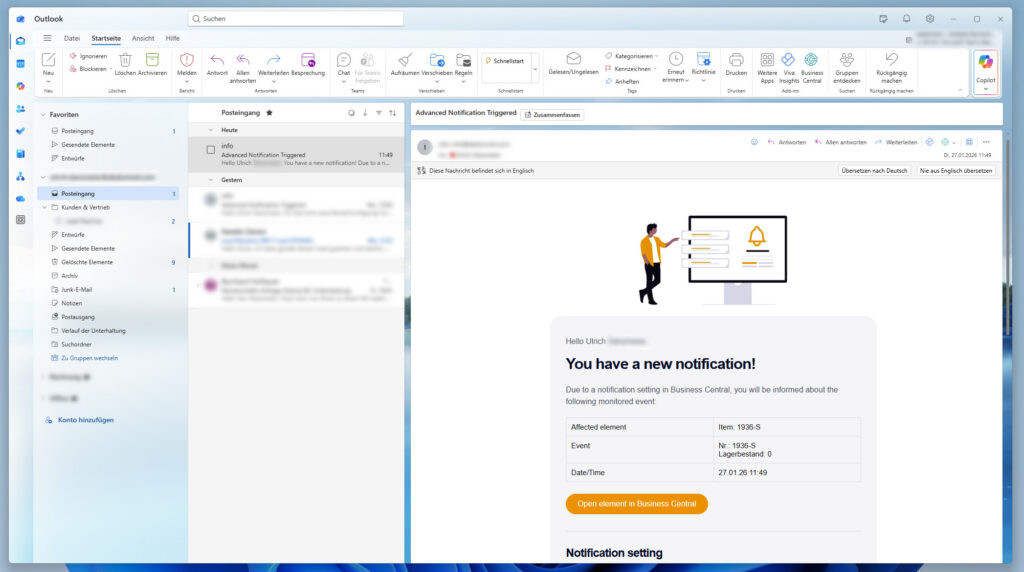
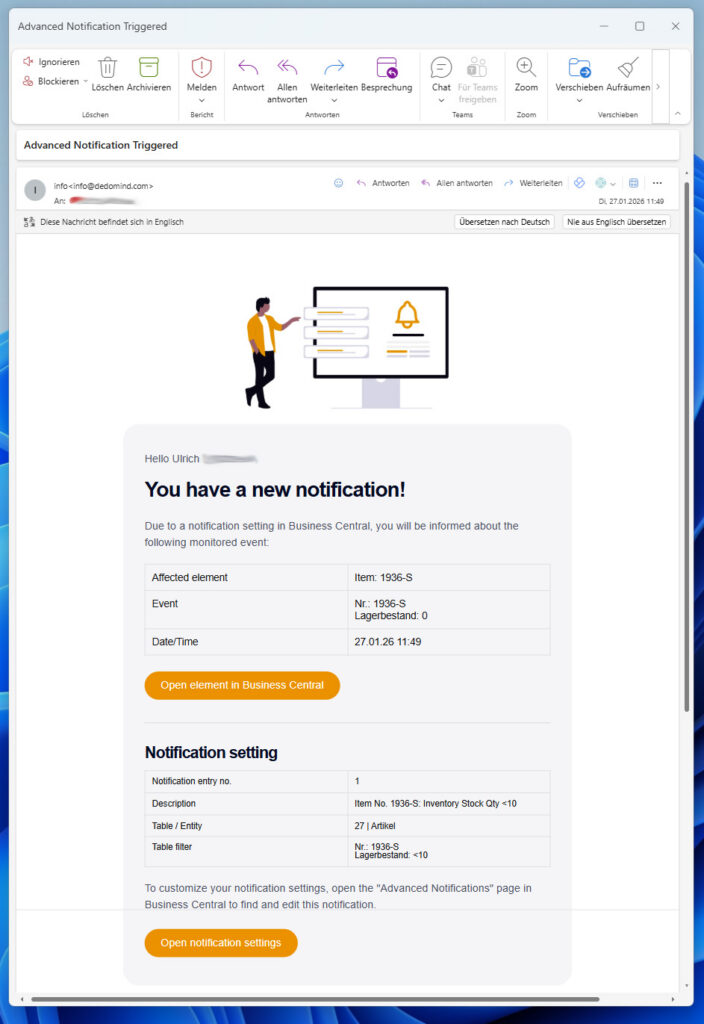
- Email: Either to existing BC users or manually entered email addresses
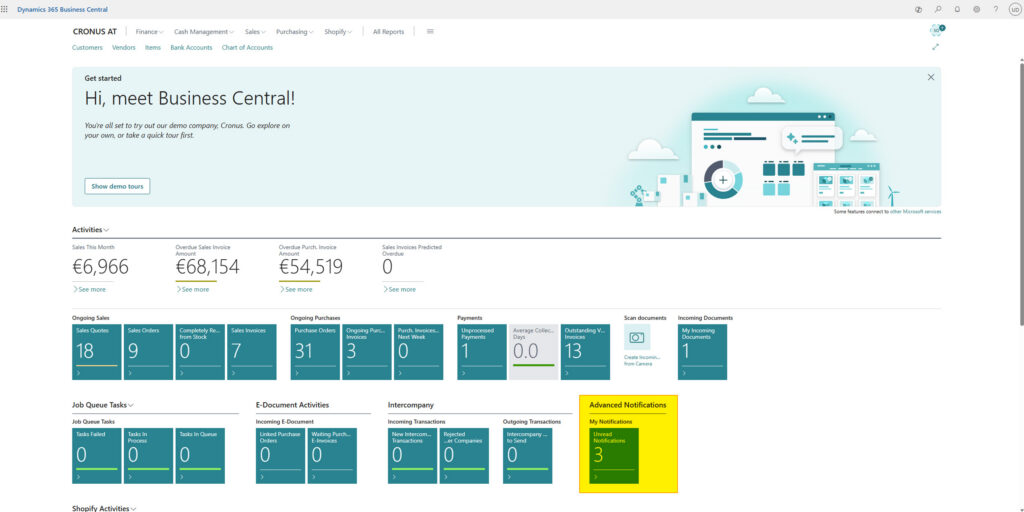
- Business Central – My Notifications: Events are listed on a dedicated BC page. Recipients can view them there at any time. These items can also be easily placed on a Business Central Role Center tile.
- Business Event: The event can be easily accessed within the Microsoft environment via Power Automate and processed further as a business event (Note: 1x Power Automate license required). This also enables, for example, transmission to Microsoft Teams. In a short tutorial, we’ll show you how to do this: View Power Automate Help
Setup & Settings
Installation
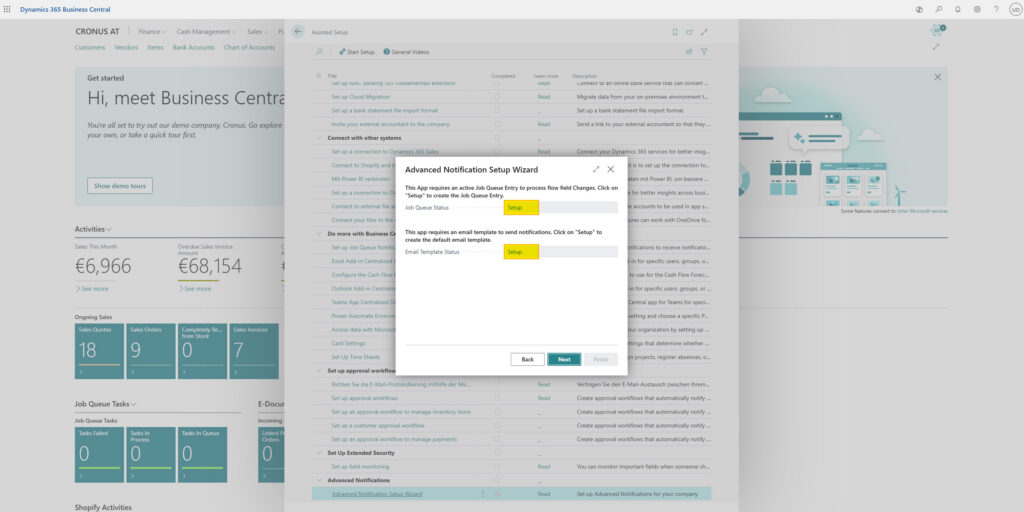
Follow our installation instructions in the documentation to install this extension correctly from the Microsoft Marketplace. Then run the Setup Wizard in Business Central, which will guide you through the app’s basic setup in just a few clicks.
Notification Templates:
Use a simple HTML editor to customize the content and appearance of your email notifications. Create different templates for each language.
Use the HTML Editor to gain full control over the layout of your notification: We recommend creating your HTML/CSS code using a standard editor (Notepad, WYSIWYG editor, HTML template builder, etc.), which you can then copy and paste into BC.
In our documentation, you can find out which variables you can use in the templates.
Overview / List:


Detail view / Card:
Settings / Setup:
Notifications:

Try it now!
You can download all of our Business Central apps for your BC environment from the official Microsoft Marketplace!

Is this exactly what you’re looking for?
Submit the order form now.

Not quite what you’re looking for?
It may quickly become apparent that this app is not suitable for you. Don’t hesitate to contact us so that we can tailor it to your individual needs!